Tag: GT-i9300

  • Gallery Lag Fix for Samsung Galaxy S3 GT-I9300

    Gallery Lag Fix for Samsung Galaxy S3 GT-I9300

    Samsung Galaxy SIII (GT-I9300) is my first ever Samsung device, I am using Android OS for a year or so but had not bought any Samsung device before. I am now stuck with the beauty of Touchwiz for now. I have rooted my phone for changing ROMs but I didn’t like any other custom ROM. In my personal opinion, Samsung TouchWiz ROM is perfect for this device.

    Still time to time, I face some problems with this device, like I have noticed the heavy lag in the Jellybean gallery app. It made the scrolling a bit choppier. I tried this lag fix by my own and fixed that heavy lag issue in the gallery app. You don’t need any third party application to apply this lag fix. You just need to stop the Picasa and Facebook photo syncing from the settings. Also, you need to delete the old data & cache from the gallery and SNS app. Here is a complete noob friendly guide:

    Important Note: By applying this lag fix you will lose your Facebook and Picasa synchronized photos, and data from the gallery app. I would highly recommend to backup all of your photos and data to Dropbox or on your computer.

    Gallery Lag Fix

    • First of all, backup all your device photos to the computer by plugging your device via USB cable.
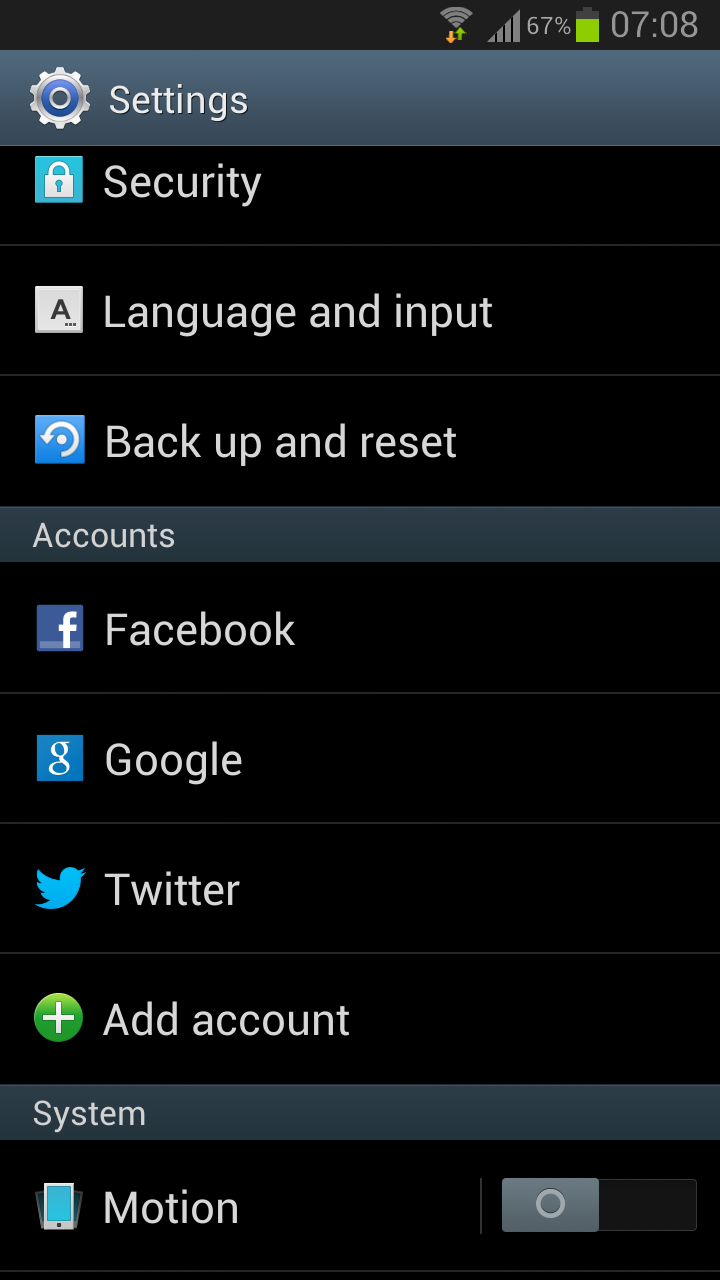
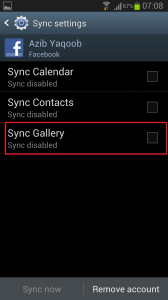
    • Go to settings, under account first tap on the facebook. Now click on the username with the sync icon.
    • Settings Samsung S3Uncheck Sync Gallery and move back to settings.
    • Un Sync Gallery
    • Now, select Google under the Accounts. Tap on the email address with sync icon, uncheck these boxes Sync Google Photos and Sync Picasa Web Albums.
    • Move back to settings, open Application Manager. Now go to last tab “ALL” in the application manager.
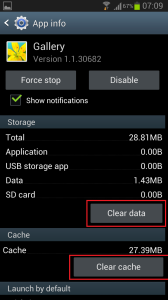
    • Find the Gallery App there, tap on it. Now Clear Cache and Clear Data.
    • Samsung Galaxy S3 Gallery Lag
    • Move back to the Application Manager, in ALL tab find the app SNS. Clear cache and data of this app as well.
    • Now, restart your phone. Wait for 1 or 2 minutes to fully load the Operating system. Now open the gallery app if it’s still showing the same lag as before let me know.
    Note: After rebooting the phone, the gallery needs to re-build the cache again. It may lag once or twice. But when you use it for some time it will not lag as it was lagging while the syncing was enabled. Let me know in the comments if this lag fix has worked for you.

    If you’re having difficulty charging up your Galaxy s3 then read this post on how to fix slow charging on Galaxy S3.
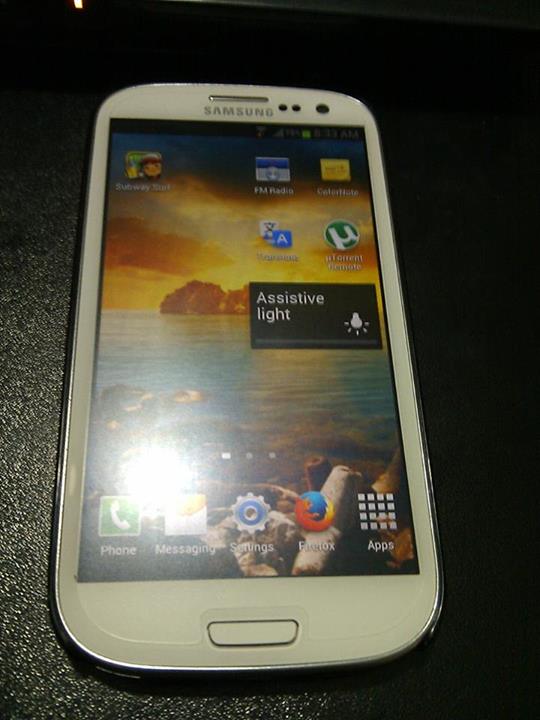
  • Slow Charging Fix for Samsung galaxy S3 GT-I9300

    Slow Charging Fix for Samsung galaxy S3 GT-I9300

    Update:
    09 November – 2013

    The old tutorial worked for me for a day or two then this slow charging issue came back. However, I resolved the slow charging issue on my Galaxy SIII (GT-I9300) by changing the USB cable. This slow charging fix is working on lots of other Samsung devices as well. It turns out the stock Samsung cable was faulty.  It was not sending current to the device as it supposed to be. I used the HTC desire USB cable and this resolved my issue completely. Now, my device getting the charging current as it should get. On AC  the charging current should be 1000ma and on USB it should send 460 to the device.

    Slow Charging

    Slow Charging Fix

    • Download this app from the xda thread or buy it from the play store.
    • Connect your charger to the wall socket and turn on the switch.
    • Now, open the installed galaxy current app and check out the max values. It must show  1000 in max value.

    If not try some other cable with your charger and repeat the above process. When you get the 1000ma on max value, it means now your slow charging issue has been fixed and it is charging properly.

    ———————————————————————————————————————–

    Out Dated:
    The procedure given below didn’t work for me either in long run. Please use the above-updated tutorial for solving your charging issue.

    I bought the Samsung Galaxy S3 (GT-I9300) about a month ago, it is my first high-end device. After using this device a couple of weeks, I upgraded my phone to this official firmware update I9300XXEMD3.

    After the new update, I encountered this strange problem on my phone. It was charging quite slowly on the stock wall charger. I even tried USB charging via my laptop but it was not getting completely recharged.

    For hours of searching on the internet, I finally found the fix. I am not sure if this fix will solve the slow charging problem on any other firmware but for me, it worked though. For those of you who are having this problem, give this solution a try and let me know the results.

    Note for Rooted users:
    This fix has only been tested by me on the stock firmware I9300XXEMD3 and on stock android recovery. I don’t know if this fix will work on rooted devices as well but you can try it by wiping the cache in CWM/TW recoveries. But I would recommend asking some expert on XDA before taking any actions.

    Things you need:

    • A working unrooted GT-I9300 with stock Firmware and recovery.
    • Save your important data on the computer, just in case if you accidentally delete the complete system so you can recover back your important data.

    For Backup of your phone data, please read this:

    If you want to back up your applications and apps data without root, you can use the Helium backup app from Google Play.

    After creating the app backup, copy all the important data from internal/external SD card via plugging your device with your computer and paste it to someplace safe on your computer’s hard drive.

    Note: You will not need this data, but just to be safe you should back up all of the important data.

    Solution:

    1. Turn off your phone and wait for 5-10 seconds.
    2. Now press the volume up button + Home Button and power button at the same time. Leave the buttons when you see the green Android Logo. This button combination will send you to the Android stock recovery.
    3. Please note this interface of stock recovery cannot be controlled through a touch interface. For going up/down use the volume keys and for applying an action from the recovery use the power button.
    4. Now, carefully select the option “Wipe Cache Partition”. By using the volume down button to scroll to the wipe cache partition and apply your action by pressing the power button.
    5. Wait for few seconds to complete this operation, now carefully select the option “Reboot System Now”.
    6. This will restart your phone to the main Android OS.
    7. Now, wait for few more minutes to settle down the OS. In this time find your wall stock charger and plug your device for charging.

    Let me know if this fix will resolve your issue of slow charging. Also, check out my other post on Samsung Galaxy S3 gallery lag fix.