Tag: Android

  • How to Convert Videos to Play on an Android and iPhone Device

    How to Convert Videos to Play on an Android and iPhone Device

    I was looking for a way to convert a video file for an iPhone or an Android device. Unfortunately, there was not enough information about iPhone and Android video conversion process. So, I decided to write a post; I hope this will help people who want to convert videos for their iPhone, iPad, or an Android phone.

    In this post, we will first look at what video formats are supported by iPhone, iPad or Android. Then we will use WinFF, an open source video converter to convert files into a format supported by these devices. Then you can copy these converted video files to your iPhone or an android powered phone and watch them.

    First, we have to download the WinFF video converter to convert video files. You can download Winff from here:

    Download WinFF

    Video Formats Supported by iPhone and iPad

    • H.264 video up to 720p, 30 frames per second, Main Profile level 3.1 with AAC-LC audio up to 160 Kbps, 48kHz, stereo audio in .m4v, .mp4, and .mov file formats.
    • MPEG-4 video, up to 2.5 Mbps, 640 by 480 pixels, 30 frames per second, Simple Profile with AAC-LC audio up to 160 Kbps per channel, 48kHz, stereo audio in .m4v, .mp4, and .mov file formats.
    • Motion JPEG (M-JPEG) up to 35 Mbps, 1280 by 720 pixels, 30 frames per second, audio in ulaw, PCM stereo audio in .avi file format.

    Video Formats Supported by Android Phones and Devices

    • H.263|3GP (.3GP) and MPEG-4 (mp4)
    • H.264 AVC| 3GP (.3gp) and MPEG-4 (.mp4) MPEG-TS (.ts, AAC audi only, not seekable Android 3.0+)
    • MPEG-4 SP| 3GPP (.3gp)
    • VP8|WebM (.webm)

    How to Convert a Video for an iPhone Device

    Open Winff software and install it on your computer.

    Now open Winff and click on add button.

    How to convert Videos for Android Phones 2

    Select a video from your computer and add it.

    Look below at the bottom of the blank area. There will be the option Output Details.

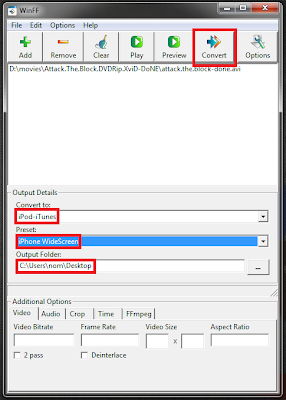
    Set convert to = iPod-iTunes

    Set Preset to = iPhone WideScreen

    Output folder = give the destination of the folder where you want to save your converted video file on your computer.

    Now click on the convert button to convert your video file.
    How to convert Videos for iPhone 2

    This process will take some time to finish. It depends on the size of your video file. When it finishes off, copy that file into your iPhone.

    How to Convert Video for an Android Device

    Open winff, click on the add button.

    Choose a video file from your computer for conversion.

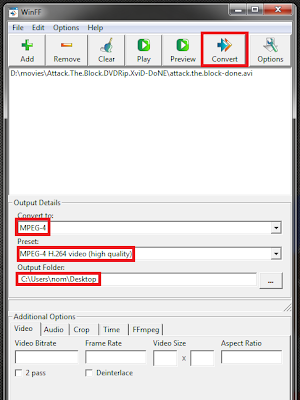
    Set convert to = MPEG-4.

    Select Preset to = MPEG-4 H.264 (High Quality).

    Output folder: give the destination of the folder in which you want to save this converted video file.

    Now click on the convert button. It will take some time (depend on your video file size).
    How to convert Videos for Android phone 1

    That’s it. Now you can play and enjoy videos on your iPhone and Android phones. If you find any problems while applying these instructions, you can ask me in the comments below.


  • How to Download Videos from Facebook

    How to Download Videos from Facebook

    Sometimes while using Facebook, you find an interesting video that you would like to download on your computer or smartphone to watch it later. The good news is, there are lots of online tools and apps which you can use to download videos from Facebook without a problem. I am going to share different ways and tools so you can download Facebook videos on any device.

    It is quite a simple process. You just need to choose any of the mentioned methods and you are good to go.

    How to Download Facebook Video Using Getfvid

    1. Find any video on Facebook that you want to download. Press the right button it will show a video URL.
    2. Visit GetfVid website and paste the Facebook video URL.
    3. GetfVid takes a few seconds to process this video.
    4. Click on ‘Download normal quality video’ or ‘Download HD video’ to start downloading this video on your device.

    You can use this method on any device on which you can access a browser such as Google Chrome, Mozilla Firefox, Safari, and Internet Explorer. You can also download live Facebook videos once streaming is finished.

    How to Download Facebook Videos Using FBDown

    1. Press the right-click button on any Facebook video then Copy its URL.
    2. Paste the URL on the website and Click ‘Download’.
    3. Click on “Download normal quality video” or “Download HD video” (if available) to start downloading the video.

    Note: If the video starts playing instead of downloading, then on Step 3 Right Click the link and “Save as…” to download the video. If you get an error, then check if the video is public () and not private ( ). Or check this Video Downloader Extension for Chrome.

    How to Download Facebook Videos Using SaveAs

    Play the video, then Right Click -> Show video URL.
    Go to SaveAs.co. Then paste the URL and Click ‘Download’, like the screenshot below
    Click on “Download normal quality video” or “Download HD video” (if available) to start downloading the video.

    Android Apps to Download Facebook Videos on Your Android Device

    1. Video Downloader for Facebook

    Video Downloader for Facebook is the easiest Video Downloader app to download and save videos from Facebook.

    Video Downloader for Facebook allows you to browse through your Facebook account, your news feed and your friends/pages walls using a built-in browser that allows you to select the video you want to download and save them so you can watch it later and share it with your friends via different apps.

    How to use:

    • Click on Browse Facebook.
    • Login and browse your wall.
    • Play the video you want to download.
    • Click yes to download a video.

    2. HD Video Downloader

    HD Video Downloader allows you to download a streaming video from various websites for free. It’s the easiest and quickest way to download your favorite videos!

    How to use:

    • Go to the website to download a streaming video from the built-in browser.
    • Play the video or tap the download button. (It will be added in the download queue.)
    • Go to the download queue and select a video to download.

    Note: You can check a thumbnail, video length, and the quality before you start downloading.

    If you want to download a Facebook video, any of the tools we have discussed in this article will fulfill your needs. Check out this tutorial to download songs from SoundCloud to your Android device.

    There are lots of websites, mobile apps, and desktop programs that can achieve a similar outcome.

    Do you see other uses for downloading your videos from Facebook? Let me know in the comments below.

  • How to Add subtitles in a Movie or a TV Show Easily

    How to Add subtitles in a Movie or a TV Show Easily

    Subtitles are necessary when you are watching a movie in a foreign language. If you are new to English or learning any other language then using subtitles in your movie file is a great way to increase your vocabulary. In this post, I am going to show you how you can add subtitles to your movies easily.

    No matter what language you speak, everyone enjoys watching movies. The problem is that most movies do not have the budget to afford translation into multiple languages.

    When I started watching movies on the Internet in foreign languages I had difficulty finding suitable subtitles. However, now it becomes easier to find accurate subtitles for any movie.

    There are a lot of reasons to add subtitles to a video:

    • They make the video accessible to people who are deaf or hard of hearing
    • They make it easier to track and understand the lyrics if it’s a music video
    • They offer an alternative to posting lyrics alongside the video of a music video
    • They provide the opportunity to translate your video into any language

    How to Add Subtitles in Your Movie on an Android Device?

    If you are using an Android device then you can use VLC Player for Android and MX Player to play files which have subtitles. However, if your movie or tv show file doesn’t have any subtitles then you can easily add them. Here’s how you can do it:

    Add Subtitles to a Movie by Using VLC for Android:

      1. Play any video file that you want to have subtitles.
      2. Tap on the screen to bring up the on-screen buttons (if it is not showing already).

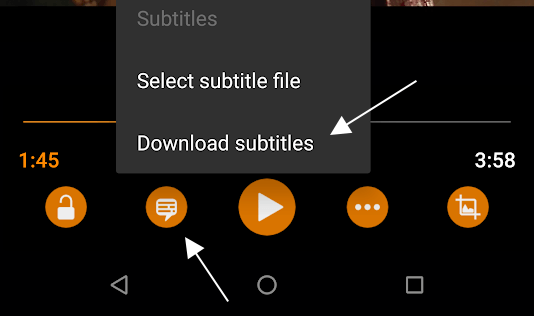
    Add subtitles in VLC player for Android

    1. Tap the second button from the left, between the lock and play button.
    2. Tap on Download subtitles.

    Add Subtitles to a Movie by Using MX Player

      1. Play any movie or tv show file using MX Player.
      2. Tap on the screen to bring up the on-screen buttons.
      3. Tap the three-dotted menu and select Subtitle settings.

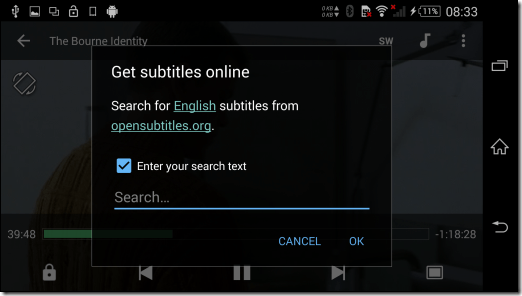
    How to Add Subtitles in MX Player

    1. Here, tap the option Get subtitles online to search and download the suitable file from the internet.

    How to Add Subtitles Manually on an Android Device, PC, or Mac?

    It’s pretty easy, just copy the title of the movie you’ve downloaded, go to google, paste the movie title and add “subs” or “subtitles” at the end, and hit enter.

    1. Click on any of the 1st three search results.
    2. Download the subtitle, which is a .srt file most of the time (sometimes it could be a .sub file)
    3. Make sure the name of your movie has the exact name as your subtitle file.
    4. Example movie: AwesomeMovie.mkv, subs: AwesomeMovie.srt
    5. You also need to put your subtitles in the same directory as your movie. Let’s suppose your movie file is in the folder “Movie Name” then you must add subtitle file in the same folder.

    Websites to Download Subtitles for Movies and TV Shows

    before you can turn on subtitles for a video, you’ll need to find and download a subtitle file that has been synced properly with that particular video file. If you downloaded a movie off of a torrent site then some torrent uploaders add subtitles within the torrent. However, if your movie doesn’t have a subtitle then you can download them by using any of these websites.

    When looking for subtitles, we only recommend these two sites:

    Subscene — My personal favorite. Unless the movie or TV show you’re trying to watch is underground or decades-old, it’s almost guaranteed that you’ll find subtitles that work. Subtitles are categorized by title, language, and whether or not they include hearing-impaired cues.

    OpenSubtitles — This database is pretty big and the subtitles do work, and you’ll even find some that can’t be found on Subscene, but beware that this site has a lot of ads. Grabbing subtitles here can feel like a game of elimination as you try to figure out which download links are the right ones.

    Let me know in the comments which of these methods you use to add subtitles to your movies. Check out this tutorial on how to download music from SoundCloud to an Android phone.

  • How to convert Youtube videos into Mp3 format

    How to convert Youtube videos into Mp3 format

    Sometimes you are listing to a song on YouTube and you wish if it could be possible to download this song and keep it into your phone storage so you would listen to it whenever you want.

    It seems like a difficult idea to download a 3gp or mp4 format video from YouTube into mp3 format but believe me it is simple.

    There are many websites and online tools which you can use to download Youtube videos into mp3. Here are some of them:

    Best Websites to Convert YouTube Videos into MP3 Format

    You can easily convert and download YouTube-clips to mp3 in high-quality by using these websites. And here is the best part – you can do it on any device you have and you can do it absolutely for free.

    1. Convert YouTube songs into MP3 Using Online Video Converter

    1. Copy and paste the video link that you want to convert.
    2. Select “.mp3” in the format field.
    3. Click the “Start” button to initiate the conversion.
    4. When the conversion is done, download the file from the link provided.

    FEATURES

    Fully compatible with the latest web browsers
    Super fast conversions
    No registration necessary
    Supports links from most video websites
    No limitations on conversions and downloads
    No software download or installation needed

    2. Convert YouTube Songs into MP3 Using YTMP3

    1. Copy A YouTube video URL from your browser’s address bar.
    2. Paste it into the search box.
    3. choose a format and click the convert button.
    4. As soon as the conversion is finished you can download the file by clicking on the download button.

    By using YTMP3 converter you can easily convert YouTube videos to mp3 (audio) or mp4 (video) files and download them for free – this service works for PC, tablets, and mobile devices.

    3. Convert YouTube Songs into MP3 Using Convert2MP3

    1. search for a video on YouTube, Dailymotion, Clipfish or on this website.
    2. Copy the link of the video and paste it in the search box.
    3. Select a format and convert and download it.

    4. Convert YouTube Songs into MP3 Using YouTubNow

    Providing a fast and free downloader YouTube to MP3 that can be used directly in the browser, YouTubNow makes it very facile for you to download your favorite videos.

    1. If you have the YouTube URL, simply paste it in YouTubNow. Otherwise, you can enter the name of the video and then click “Search”.
    2. You get a list of results and you get to choose the one you need.
    3. After identifying the video you want to convert, just select the quality and format of the final file and then click “Download”.

    Unlimited Downloads
    Faster Downloads Modifying the YouTube URL
    YouTube to MP3 Converter
    Type Video Name to Find Videos
    YouTube to MP4 Converter
    Choose Your Preferred Format
    No Registration Needed
    Compatible with All Popular Browsers

    5. Convert YouTube Songs into MP3 Using FLVTO

    The basic principle behind this service is the same for all formats and for all operating systems: just paste a link to a video that you want to be transformed to mp3 and download the transformed file a few moments later. It works on every OS or device you use!

    1. Copy a link to a video from YouTube
    2. Paste that link into an Input Field at FLVTO converter website
    3. Select the format you want
    4. Press “Convert to” and wait for your mp3 track!

    Do you use sound to listen to the latest music? If yes then check out this tutorial to download songs from SoundCloud.

  • Edit Your Picture Using Online Tools or an Android Device

    Edit Your Picture Using Online Tools or an Android Device

    If you want to edit your pictures online or have an android device, then you don’t need to use complex software such as Gimp or Photoshop to enhance your picture quality. In this tutorial, I will show you two different methods to edit your pictures using online tools or an Android device.

    Edit Your Pictures Using an Android Device

    There are countless apps available on iOS and Android to edit and enhance your picture quality. I’m going to mention the best ones here.

    1. Adobe photo editor apps

    Adobe has released many editing tools over the last couple of years. Included are some of the best photo editing apps available.

    Some options include Adobe Photoshop Express, Adobe Photoshop Mix, and Adobe Lightroom. Each one has a variety of features to help you do things. You’ll be able to do simple stuff like removing red eye to editing RAW files taken by your smartphone or DSLR camera.

    Adobe Lightroom especially gets updated rather frequently with new features. The only potential caveat is that some require an Adobe Creative Cloud subscription to use all of the features. Those already use Adobe CC should get these since they’re included with a CC subscription.

    2. Photo Editor by Aviary

    Aviary is another longtime popular photo editor with good features and reliability. Like most, it features a one-touch enhance mode if you feel lazy today. Still, it also comes with various manual adjustments to let you adjust the color, brightness, temperature, contrast, saturation, and more. This one comes with stickers, filters, and cosmetic tools such as red-eye fixing, blemish remover, and teeth whitener.

    3. Bonfire Photo Editor Pro

    Bonfire Photo Editor is one of several increasingly popular photo editor apps. This one is also pretty good. It has the basics, including filters and essential editing tools. What makes Bonfire a lot of fun, though, is the sheer number of filters that it supports.

    It comes with your usual stuff like black and white, HDR, etc., but it also comes with some unique ones such as Fancy, a filter that turns your photos into watercolor. It also has essential editing tools, like skin smoothing and blemish removal.

    4. Cupslice Photo Editor

    Cupslice is another photo editor that relies heavily on filters to deliver a good experience. On top of filters, the app features a ton of stickers, and the developers try hard to keep up with the latest trends, so your stickers are usually up to date.

    The filters can also be customized to give a look you want. Some essential photo editing tools include crop, frames, hue and saturation adjustment, black and white, collages, and brightness and contrast settings. It’s not one of the more complex photo editor apps, but it’s one of a few that are free to use. About the only issue is some bugs here and there.

    5. Fotor Photo Editor

    Fotor is a longtime member of this list, and many blogs list Fotor as a must-have option. It has a lot more actual editing tools than most and includes the ability to enhance photos with a one-tap tool for your convenience.

    Some other tools include crop, rotate, brightness, contrast, saturation, exposure, vignetting, shadow, highlights, temperature, tint, RGB, and, if those aren’t working, there are over 100 filters for you to choose from. It’s worth a shot. The only downside is that the app makes you log in to use it, and it’s one of the more expensive photo editor apps.

    How to Edit Your Pictures Using Online Tools

    When I wrote this post, there were not plenty of options regarding online photo editing tools. However, since then, many new tools have emerged and are helpful. I have included the new tool I now use to edit pictures online quickly.

    1. Canva Online Image Editing Tool

    You can edit a photo to fit your design by resizing or cropping it.

    Resize your photo

    Photos can be resized keeping the exact dimensions or freehand if you wish to resize any way you want.

    Proportional – Resizing to keep the exact dimensions of an image no matter how you enlarge or reduce its size.

    Hold down the Shift key on your keyboard while dragging the photo’s corner accordingly.

    Release the corner once you reach the desired size.

    Freehand – Resizing freehand lets you resize the photo to change the contents of the image.

    To resize freehand, click on the image.

    Select the photo you’d like to edit.

    To resize proportionally, hold down on a corner of the photo and drag to resize.

    Release the corner once you reach the desired size.

    Crop your photo

    You can easily crop your photos using the Crop button or a quick crop.

    Here’s how:

    To crop your photos, use the Crop button:

    Select the picture and click crop from the toolbar.

    Hold and drag any of the photo’s corners to adjust the image.

    Drag the photo around to set a placement.

    Click ✔️Done on the editor toolbar to complete the action.

    To do a quick crop:

    Click to select the photo.

    Hold and drag any photo’s edges, moving it inwards or outwards to adjust the size.

    Release the edges once you reach the desired size.

    Check out the latest updated article: How to Compress Images without Losing Quality.