Tag: Android

  • How to Block YouTube Ads on Android?

    How to Block YouTube Ads on Android?

    Are you tired of those annoying ads popping up while you’re trying to enjoy your favorite YouTube videos on Android? We hear you! That’s why I’m excited to share with you Revanced APK. You can block YouTube ads on your Android device forever.

    What is Revanced APK?

    Revanced is an open-source project for Android devices that can help you patch the app experience. It’s main purpose is to enrich the user experience of any app by blocking unwanted ads, and add features that users want to see in the app.

    Revanced patches can be installed on many apps other than YouTube, including, Reddit, Facebook, Twitter, and more.

    In this tutorial, we will only be using the YouTube patching to help you watch YouTube ad-free on your Android without paying for YouTube Premium.

    How to Block Ads on YouTube Android?

    First, you need to install the Revanced apk. Unfortunately, you can’t find this app on the Google Play store, because this app doesn’t align with Play Store policies.

    How to Install Revanced Manager APK on Your Android Device?

    Step 1: Download the Revanced APK from the official website on your Android device.
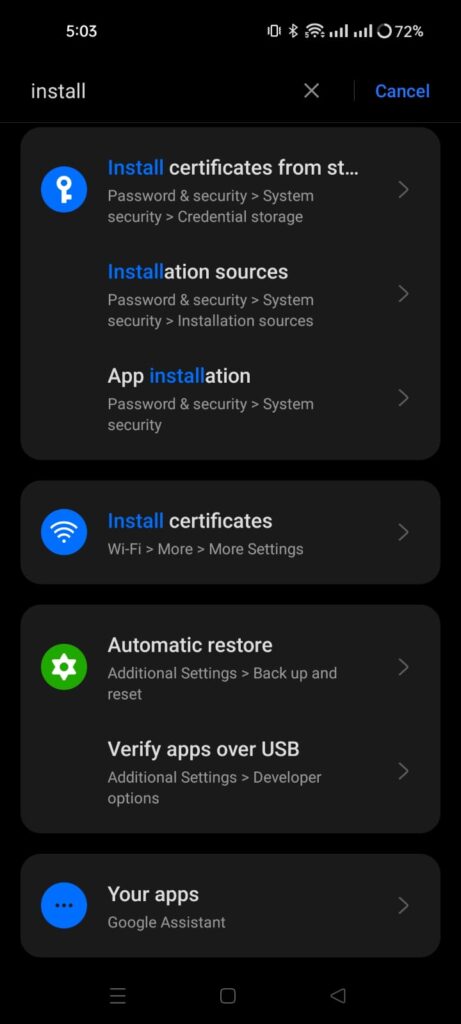
    Step 2: Go to your device settings and enable installation from unknown sources. You can also locate this setting on your device by going to Settings > Search Installation sources.

    Step 3: Open the downloaded Revanced Manager app and follow the on-screen instructions to install Revanced APK on your Android device.

    How to Patch YouTube APK on Revanced
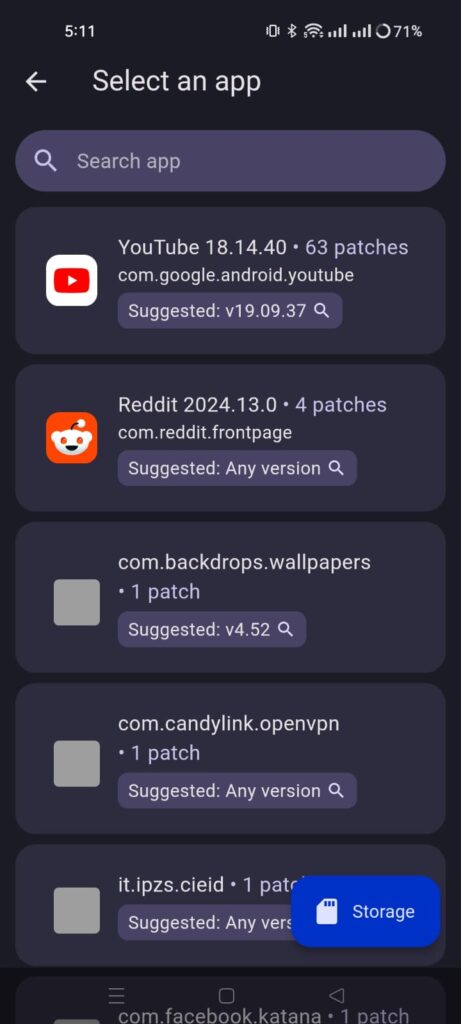
    Step 1: Open the app, and tap on Patcher. Select an app. This will suggest you a YouTube app version that you need to install to apply patches. Click on the Suggested app version. It will open a search window, go the first site apkmirror and download the app.

    Step 2: Don’t install the YouTube app yet. Go to the Revanced Manager, tap on Patcher again. Tap on Select YouTube app. It will ask you to Select from storage. Locate the YouTube app you downloaded in last step, from your phone’s internal storage.
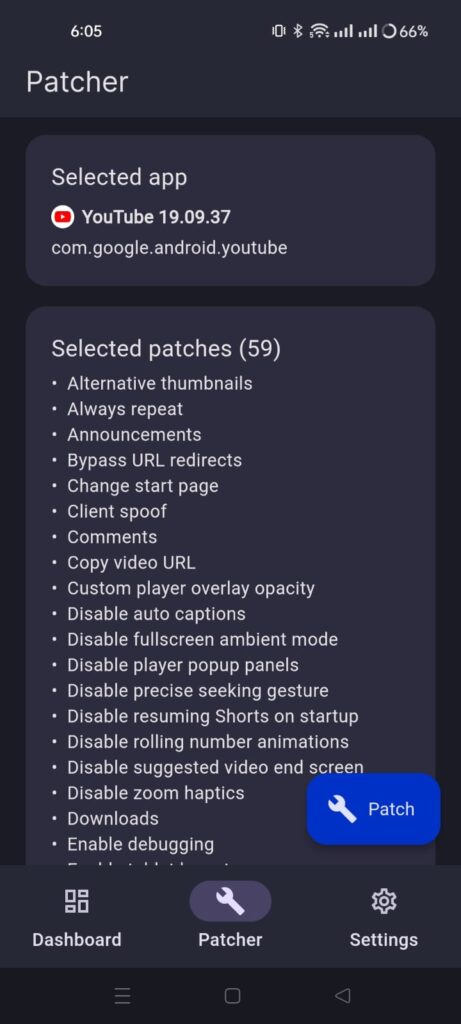
    Step 3: Configure the patches you want to apply. I suggest keep the default selected patches and tap on Patch button.

    Step 4: It will take some time to patch the YouTube app. Once it’s done, It will ask you to install this app on your device. Android might ask you to enable installation from unknown sources for this app. Give the permission, and install the app.

    Step 5: When you first open the app, Revanced YouTube app might ask you to download MicroG services app. This app will let you sign in to your YouTube’s account. So, download and install the app. It will make the YouTube experience even better for you.

    Now, you can enjoy the YouTube ad-free experience on Android. It will block all the YouTube ads on your Android device. You can also customize the app, add or remove features that you don’t use.
  • How to Spot a Fake Micro SD Card Before Buying One?

    How to Spot a Fake Micro SD Card Before Buying One?

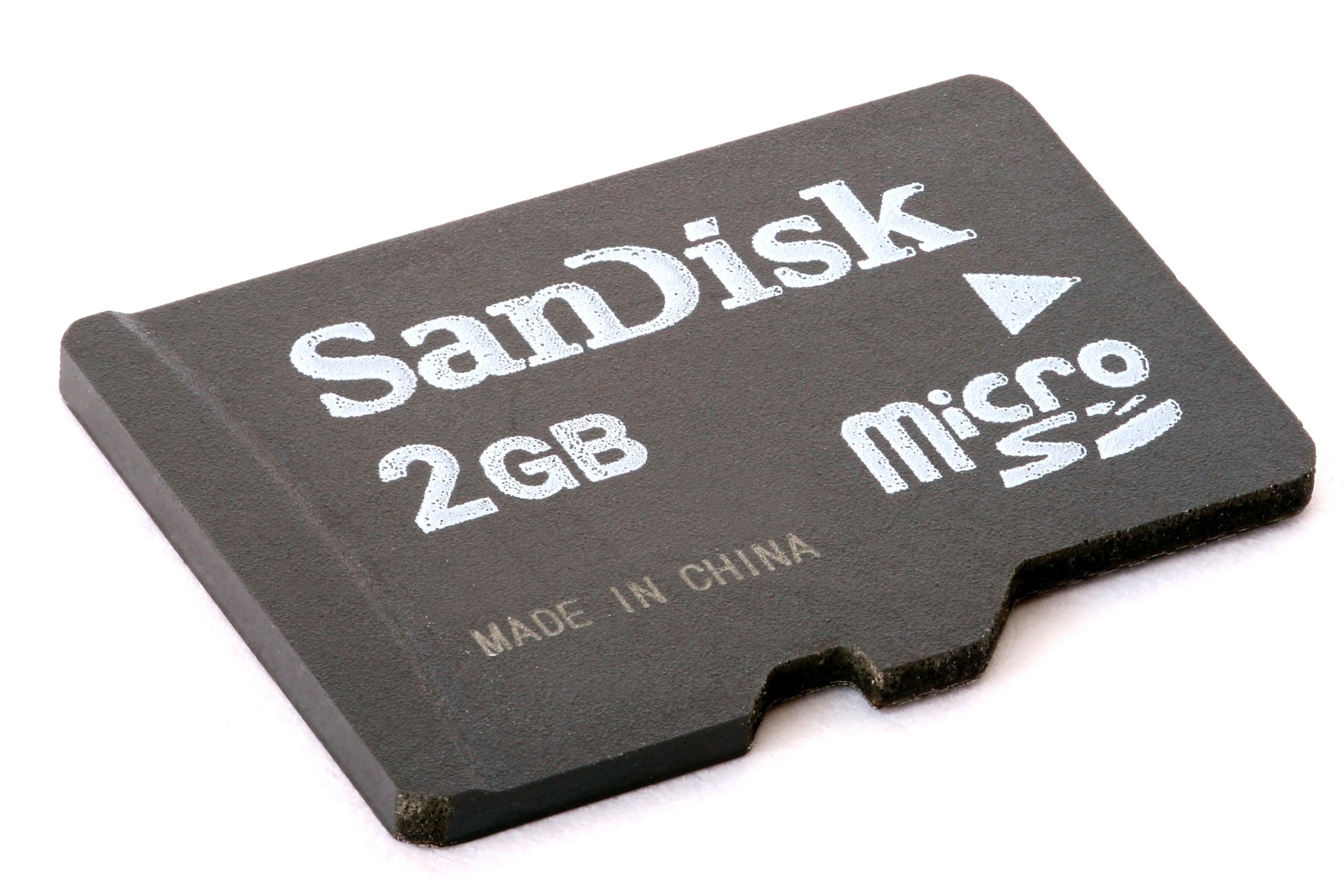
    Micro SD cards don’t cost much, but buying a fake one would cost you time. To save you from that frustration, I will share an easy process to spot a fake Micro SD card.

    If you can’t afford to buy a micro SD card, check out this post on how to free up storage on your android device.

    Never Buy Cheap Fake Micro SD Cards

    Of course, an original micro SD card costs more than the fake one. You first need to know that you should not purchase any cheap counterfeit micro SD card from an unknown vendor. Always buy from a reputable store, whether it’s online or offline.

    Before buying your Micro SD card, you should install SD Insight on your Android device. In my city, finding a legit micro SD card is difficult. I have also used this same method to test the SD card.

    Use SD Insight App to Spot a Fake Micro SD Card

    SD insight is a helpful and free app you can install on any Android device. It will display the SD card manufacturer information, model number, and the original capacity of an SD card. You have to insert an SD card into your android device and run this app.

    This information will help you spot a fake micro SD card right away.

    Step 1: Download this app on your Android device by going to Google Play and typing ‘SD Insight’ in the search box.

    Step 2: Once installed on your device, you have to insert the micro SD card and run this application.

    Step 3: It will show you plenty of information about your device’s internal storage (MMC Card) and external SD card. Since we only want to test the external SD card, we will tap on the SD Card option from the top menu.

    Now you should check for these things manually.

    Manufacturer & Production Date

    Check both manufacturer information and the production date. Some SD card manufacturers don’t manufacture their chips, such as Kingston.

    However, it would help if you looked up the manufacturer’s name on Google. I bought the Kingston SD card, so when I saw the manufacturer information, it wasn’t mentioned Kingston in the manufacturer. So, when I look it up, I found that it is, in fact, a company that manufactures Kingston SD card chips.

    Model Number on Your Packaging

    You Should check the model number match the one mentioned on your SD card packaging. If it’s not, then you probably have a fake micro SD card.

    Card Capacity (Storage)

    In your SD Insight app, check that it mentions the card’s correct capacity. For instance, if you have purchased a 64 GB SD card, it should clearly say that.

    There are several other methods to spot a fake micro SD card, but for them, you need a laptop. I hope you find this post helpful. Let me know in the comments what other methods can be used to spot a fake SD card.

  • How to Easily Free Up Storage on Your Android Device?

    How to Easily Free Up Storage on Your Android Device?

    If you constantly run out of space on your android device, you should check out these simple tips to free up more storage on your Android phone.

    The simple solution is to buy a new Micro SD card to increase the storage on your device. However, for some reason, if you can’t buy a new SD card, here are some valuable tips to free up storage.

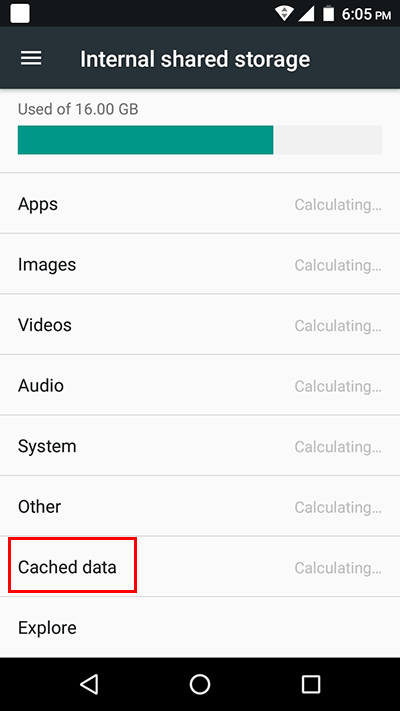
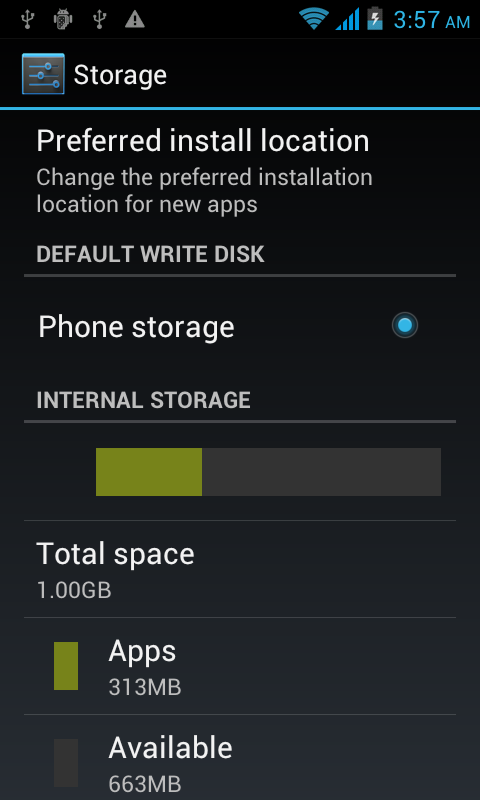
    First of all, you should check how much storage has been used by your apps and media files from settings > storage.

    remove cached data

    You can use that storage option to remove some unimportant files, media, and apps. Also, you can try out these methods to get more space on your device.

    Remove Cached Data from Apps

    One of the most annoying thing about Android is that it caches a lot of data in apps such as YouTube, Instagram, Facebook, etc… Caching that data help Android applications load faster. That’s why we see a lot of apps hog storage and memory.

    You can find an option to clear Cached data from Settings > Storage > Cached Data. Tap OK when it asks for confirmation.

    This will free up much storage on your device (depending on the device’s usage).

    Backup Your Photos to Cloud or PC

    If you take a lot of selfies and photographs from your phone, you should back up your photos somewhere safe. You can use cloud storage such as Dropbox, Google Drive, or Google photos. You can also save them on your laptop.

    After backing up your photos, you can remove them from your device storage. I use Google Photos, which handles this pretty seamlessly. It comes with both options; if you want to keep the quality of your photos, then you should consider buying more storage from Google. https://one.google.com/storage

    Remove Unused Apps

    Are there any apps on your Android phone which you never use? I had some apps I installed for some reason, but then I forgot about them.

    You can find apps you don’t use and uninstall them immediately. It will save you a couple of hundreds of Mbs on your device storage.

    Use Files from Google

    It is a new Android app by Google to help you manage files and keep your device storage healthy. It has several options to choose from. When you first run this application, it will scan unnecessary files and folders and give you a chance to remove those junk files and free up more space on the device.

    Also, if you give Google Files permission, it can track which apps you don’t use and give you a notification to uninstall those unused apps.
    https://play.google.com/store/apps/details?id=com.google.android.apps.nbu.files&hl=en

    Buy an SD Card

    So, if you are one of those who keep all their media files on an Android device, you must buy an SD card. I recently purchased a 128 GB SD card because I had a lot of media files on my device.

    Whichever SD card you buy, always buy it from a reputable vendor. There are a lot of fake SD card manufacturers, so you should be wary of them. Please read my article on how to spot a fake micro SD card before buying one.

    Use Cloud Storage

    If you save a lot of files on your device, you can sync all of them to your cloud storage. Using cloud storage is the easiest way to keep your device free from unnecessary data.

    Google gives 15 gigs of free cloud storage with every account, so you might as well use it. When you find a good use for that space, you can always buy more storage from Google.

    Similarly, you can try Dropbox. It is another cloud storage option to choose from. It comes with a free account; you can upgrade it to get more storage.

    I hope you find this post helpful. Let me know in the comments what other methods you use to free up Android device storage.

  • Download Songs from SoundCloud to Your Android Phone

    Download Songs from SoundCloud to Your Android Phone

    Are you looking for a way to download songs from your SoundCloud app to your Android phone? The good news is, you can download any song on your mobile phone memory.

    SoundCloud is an online audio distribution platform and music sharing website based in Berlin, Germany that enables its users to upload, promote, and share audio. There are many mainstream artists as well as some underground musicians who upload their music on this website.

    How to Download Tracks from Soundcloud (Official method)

    On Web, you can download tracks once you have signed in to your SoundCloud account by clicking on the download file button beneath the waveform:

    You can enable, or disable downloads for your listeners through your track’s Permissions tab. Enabling downloads means that your listener can have a copy of your original file format that you have uploaded to SoundCloud.

    Please note: Not all tracks are downloadable. If you don’t see a download file button, it means the user who uploaded it did not intend for it to be downloadable. Additionally, only individual tracks can be downloaded and playlists as a whole are not available.

    Saving content on mobile devices

    Music disk

    It is not possible to download a track from a mobile device. However, users with a SoundCloud Go or Go+ subscription can save content for offline listening on a mobile device.

    Disclaimer: This tutorial is for educational purposes only. If you like the song and want to download the then please support the artist and buy the song from SoundCloud, Spotify or Google Play store.

    How to Download Songs from SoundCloud Android App to Your Phone Memory?

    Step 1: if you don’t have SoundCloud app on your Android phone, then first download SoundCloud app. Register your account on SoundCloud.

    Step 2: Now, download SoundLoader app from PlayStore. It is an amazing app, which make downloading songs from SoundCloud easier for the end user.

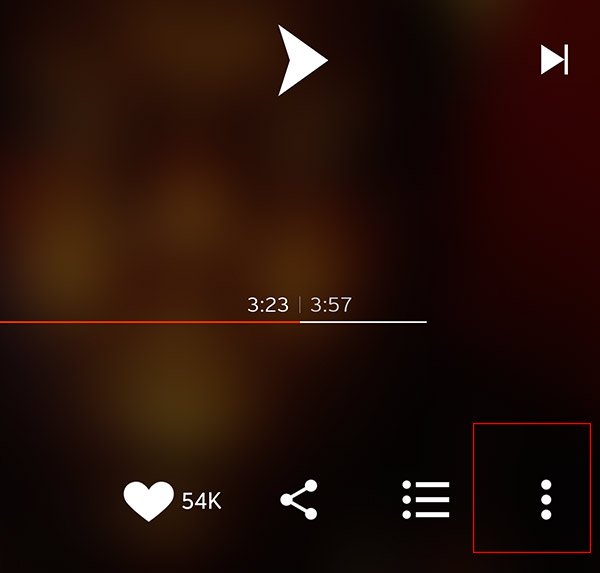
    Step 3: Go to your SoundCloud app, and search for your favorite song that you want to save in your phone memory. You will find a 3 vertical dot icon at the bottom of the screen.

    Download songs from SoundCloud

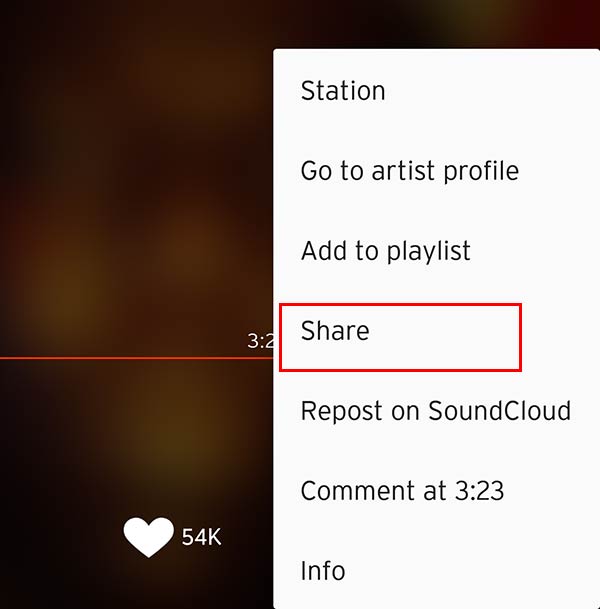
    Step 4: Clicking on it will open up a new menu. From there, tap on Share button.

    Share a song from SoundCloud

    Step 5: Find the app icon SoundLoader from the sharing options. When you click on it, this will start downloading your favorite song to your phone memory. You can use this amazing feature to download as many songs as you want.

    Websites to Download SoundCloud Music

    These are third party websites which can be used to download a song from Soundcloud to any device. You need to copy a URL of the track that you want to download and paste it on the website.

    Android Apps to Download Songs from SoundCloud

    • My Cloud Player: SoundCloud player with ChromeCast, Upnp/Dlna and Last.fm support.
    • SoundHound: Hey, what song is that? SoundHound 8 makes it simple to discover music playing around you. Whether you’re in the car or out and about, open the app, hit the big orange SoundHound button, let your phone listen for a few seconds, and we’ll tell you exactly what’s playing! Some folks have called it pure magic, and we tend to agree.
    • Hound voice: Want to try something more advanced? Hound can use follow-up questions and commands to filter, sort, or add more information to the original request. Give this a shot: “OK Hound… Find Asian restaurants rated 4 stars or more within walking distance of Times Square and exclude Chinese, Korean, and Thai”

    You can also share this article with your friends to let them know this cool way to download songs from SoundCloud to your Android phone for free. However, please keep that in mind downloading copyrighted stuff is illegal in some countries and it could cause you some serious trouble.

  • Qmobile Noir A8 New ICS ROM ported from MyPhone A878

    Qmobile Noir A8 New ICS ROM ported from MyPhone A878


    Important Note:

    Please flash this rom at your own risk. I am not responsible for any damage caused by flashing this rom. If you are still want to flash it, go ahead and do it. Don’t claim me if your device got bricked by flashing this rom.

    Download ROM

    All credit goes to origional developer of this rom. I just did some copy pasting from changing boot.img and some other little tweaks. I am no expert, programmer or claiming anything. I give credit and respect the real developers of this rom. If you have any claim or want to delete this thread please feel free to PM me.

    Features of ROM:

    Quote:
    1. 2.5 GB internal Storage, now you can choose where you want to install your apps.
    2. Super fast & more responsive
    3. T9 Stock ICS dialer
    4. Stock ICS messaging app
    5. screen lock/unlock sounds changed
    6. More battery efficient
    7. New launcher
    8. Some new ringtones and notification tones

    This ROM is not quite different from Qmobile Noir A8 ROM but the speed of the ROM is what makes me think to share this rom with other people. Please feel free to leave your comments if you find any bugs. I cannot guarantee you I will solve your problem but I will try to find solution for your problem. (because I am noob like many of you guys).

    Not working: 

    Quote:
    FM radio
    Please let me know if you face any other problem.

    Installation:

    First of all, for installing this ROM on your Qmobile Noir A8; you must root your device and install CWM recovery. (there are many tutorials on XDA, please Google it)

    1. Download ROM from here.
    2. Copy the zip file to root of your SD card.
    3. Turn off your phone, Now wait for few seconds to complete shut down.
    4. Press Power + volume down button on the right corner of your phone. It will take you to CWM recovery interface.
    5. Backup your current ROM. (for navigation use volume up and down keys and press power button to enter) Click on Backup and restore > Now click on Backup. wait for 10 – 20 minutes for completely backup your rom.
    6. Now, you have backup of your old working rom, just in case anything goes rom between flashing this rom you can restore your backup.
    7. Now click on Wipe data/factory reset.
    8. Click on wipe cache partition.
    9. Go to mounts and storage and > format /system.
    10. Click on advanced > Wipe Dalvik Cache.
    11. Now click on Install zip from SDcard > Choose zip from sdcard > Select the rom name ICS_Qmobile_NoirA8.zip
    12. It will flash the rom to your device, wait for few minutes. After this process ends click on reboot system now.
    13. Have fun with this new ROM

    If you find any bugs or other suggestions please let me know.

    Credit:
    Djwayne Orgional developer of this rom
    Pakistanish for PAQ1 ROM, using his boot.img and other related tweaks to apply on this rom

  • Fix Ringtone Volume that Automatically Turn Down Itself in Android OS

    Fix Ringtone Volume that Automatically Turn Down Itself in Android OS

    I always have Ring Volume to the highest. I have noticed on many occasions that after using a variety of apps, playing a game when I check the Ring Volume is set to its minimum. I go through and try to replicate apps that I have used and cannot trigger it. It just seems to happen spontaneously. I have missed some phone calls because of this.

    My phone ring volume was turning itself down from the last couple of days. I didn’t know what causes this problem exactly, but I had missed many calls by this strange behavior on my phone.

    I searched a lot for the fix and finally, I found a fix. This is not an official fix but using a third party app we can stop a ring volume to turn down or up.

    If you know any better solution to fix this problem, please feel free to leave a comment. I will update the content of this tutorial so people will get the information they were looking for.

    Ringtone Volume Fix

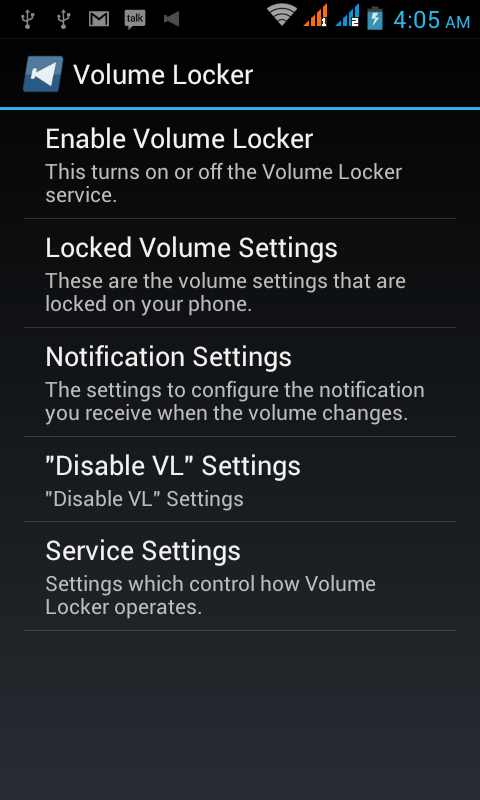
    Here is an app called Volume Locker, which is free and very useful app for those people who are facing this particular problem in their android phones.

    This app will lock the ringer volume and prevent accidental volume changes by you or your phone by asking you to keep this change in the notification from the taskbar or it will show a popup notification.

    If you don’t respond to the notification in 30 seconds (by default settings for the app, you can change it instantly) this app will keep the ring volume as it was before. If you tap the notification, this app will change the ringer volume.

    It is not a solution that you might enjoy but still time to time we all face similar problems due to the software bugs left unfixed by phone manufacturers. This solution could help you out.