Blog

  • How to Get New Freelance Work on Freelance Job Websites

    How to Get New Freelance Work on Freelance Job Websites

    Getting freelance work on websites like Upwork, and Freelancer is a bit tricky. You can still lend a decent gig by using one of these websites, but how?

    Freelancers who are new to these websites mostly end up not getting a project at all, no matter how hard they try.

    I know how exactly it feels when you have all the skills in the world, but when you send a proposal to the client, you never heard back from them.

    And you keep trying and trying that. After so many rejections you just want to quit. And you should; unless you want to improve.

    Freelancing is not easier than any other profession. Sure, it gives you more freedom as a professional working from home, but you have to work and work harder, in order to land a client.

    Your freelance career will take time, hard work and dedication to be successful just like any other business or a job.

    What Actually Helped Me Get More Work on Freelance Job Websites?

    When I started working as a freelancer I rarely got any jobs. Why? Because:

    • I wasn’t giving it enough time and effort.
    • My proposals were needlessly comprehensive.
    • I wasn’t treating myself as a business.
    • I wasn’t reading and improving my business skills.

    One thing that helped me tremendously to find new freelance work online was improving my understanding of how other freelancers were working.

    I started asking questions in groups and forums. I discovered that every freelancer who makes a good living through freelancing treat themselves as a business rather than a freelancer.

    What other Professional Freelancers Were Doing Differently?

    • They prepare spreadsheets, documents, proposals, invoices, reports to deliver the best experience to their clients.
    • Professional freelancers track their time using tools and software to deliver projects before deadlines.
    • Most importantly, professional freelancers make clients satisfied.

    1- Write Brief Proposals

    What? Yeah, you read that right. This advice alone could double your freelancing income in no time. If you don’t believe yet, just give it a try.

    Please keep in mind; client’s don’t want to read how great you are at whatever skill you have. They want to know if you can solve their specific problem or not.

    If yes, then convince them.

    Tell them how you can solve their specific problem. Ask them questions to show your interest in the work. Show them that you care about them and want to improve their business.

    2- Never Compete on Price

    Some freelancers believe that using this strategy will get them more projects.

    Believe me, it is not in anyone’s favor.

    Most likely the client that you got through low-balling would be a nightmare to work with.

    What instead you should do:

    • offer great quality service at a reasonable price.
    • Keep your price competitive but not cheap.
    • Make sure that you are getting enough money that justifies your hard work.

    3. Ask a Question in every Project Proposal

    This helps your client to understand that you read their job specifications and you are genuinely interested in their project.

    You would be amazed to know more than half of the people don’t bother to read the client’s specifications at all on these freelance job sites.

    (I have hired a few people on these websites as well, so this is based on my personal opinion, but it could vary)

    4. Always remember your end goal

    Most freelancers think that getting a project should be their end goal but it shouldn’t be.

    Because you are pitching to your potential client at this stage, he/she wouldn’t just give you a job once they read your proposal.

    Your client would most likely start a conversation with you.

    So when writing proposals, make sure that you ask your client a question which leads them to strike a conversation with you.

    Having a conversation with a client should be your end goal.

    When they approach you in the inbox, I think it is easier for you to convince them and talk about your skills, their project, and anything in between.

    Now, that your client has finally come to your inbox, you should talk about the project and show a great deal of interest in their project.

    In my opinion, you should never brag about 12 years of experience because if they want to know more about you, they would gladly ask or read your profile.


    Best of luck!
    I hope this post would help you get more freelance work.

    Please feel free to add your valuable opinion about what things worked for you and how other freelancers can get more work in the comments. I will add them to this post. So everyone can benefit from them.

    If you’re from Pakistan and not getting paid on time then check out my post on how to receive online payments in Pakistan
  • 10+ Best Google Docs Tips to Increase Productivity

    10+ Best Google Docs Tips to Increase Productivity

    If you are new to Google Docs or having trouble using it, this post will help you a lot. In this post, I am going to share with you the best Google Docs hacks and tips to boost productivity.

    1. Must Know Google Docs Keyboard Shortcuts

    Using keyboard shortcuts will improve your productivity while working on a Google Docs. These shortcut are the most important ones which are used frequently.

    • Ctrl+Home: Get back to the top of your doc.
    • Ctrl+B: Bold text.
    • Ctrl+E: Align center
    • Ctrl+L: Align left.
    • Ctrl+M: Insert a comment.
    • Ctrl+H: Replace text.
    • Ctrl+Z: Undo.
    • Ctrl+Y: Redo.
    • Ctrl+J: Full justify.
    • Ctrl+Shift+L: Bulleted list.
    • Ctrl+Shift+Space: Insert non-breaking space.
    • Page Down: Move down one screen.
    • Ctrl+K: Inset link.
    • Ctrl+Shift+F: Full screen.
    • Page Up: Move up one screen.
    • Ctrl+Space: Remove formatting.
    • Ctrl+: Heading style 1. Change the “1” to any number 1-6 and get the corresponding header.

    You are not limited to only use these keyboard shortcuts only. In fact, you can add your own keyboard shortcuts.

    Create a new document or open an existing document, then select Tools > Preferences.

    Select Automatic Substitution if it’s not already enabled.

    On the left, you’ll find replacement fields you can use to enter the phrase you wish to use as the shortcut. Enter the text you want to replace in the field on the right.

    2. Export Documents to Your Computer

    When you’re done editing, you can save and export the document as a Word file (go to “File,” then “Download as” and select Word doc or your desired format). This works in Sheets (Excel) and Slides (PowerPoint) as well.

    3.Use Made up Templates

    If you are writing a CV or a cover letter or anything similar, you might need templates to make things easier.

    Check out Google’s template library to find templates from project proposals to schedules, invoices, calendars, and business letters.

    You can also create and save your special templates to be used for the future.

    4. You Can Type by Using Your Voice

    You can create and edit documents through Google Docs using only your voice. Before you begin, you must make sure voice typing is open.

    In your Google document, select Tools.

    Select Voice Typing to open the voice window. It will open on the left-hand side of your document screen.

    You’ll need to allow Google Docs to access your microphone if this is your first time. Once approved, you’ll be able to start speaking immediately.

    As you speak, Google will transpose your words into your document.

    To add punctuation to your document, simply say the punctuation you wish to add. For example, say “period” to add a period to the end of a sentence.

    You can also add new paragraphs by saying “new paragraph” or “new line” while speaking into your document.

    To edit your document, say “italics” or “bold” to enhance words within your sentences. You can also say, “go to the end of the line” to skip ahead.

    5. Use Google Keep within Google Docs

    You can also add notes and images from your Google keep without even leaving the Google Docs. Work with Google Keep notes right from Google Docs. You can add a text or image note from Keep to a document. And likewise, you can add a note to Keep using content from a document.

    6. Add New Fonts

    When you create a new document, Google Docs starts you off with nearly two dozen native fonts you can choose from using the dropdown list on your top editing toolbar. But, there are dozens more fonts and typefaces available to you in that same dropdown.

    To add additional Google Doc fonts, open your document and click the fonts dropdown third box from the left on your editing toolbar.

    7. Open a New Document from Your Browser’s Address Bar

    Simply open a new Chrome tab and type “doc.new” and hit return, and you’ve got yourself a new blank Google doc. Amazing, right? It’s the kind of simple trick that will leave you surprised, impressed and kind of annoyed you didn’t know it already.

    8. Tag People Using Comments

    There’s an option of adding a comment by highlighting some text. For example, if want to point out mistakes of your writer to the editor then you can tag them by highlighting the text that needs to be overlooked. Google Docs will notify the tagged user through an email the text of your comment.

    9. Add Table of Contents

    If you’re writing a long essay or a book then this feature will be quite useful. Without adjusting anything, You can simply press the table of contents button and it will generate and stylize content according to subsections and headings that you have used in the document.

    From the menu click on the ‘Insert’ then choose ‘Table of Contents’.

    10. Publish Docs to the Web

    If you can’t afford to have a domain name and web hosting then you can publish your document as a webpage. Here’s how you can publish a Google Doc as a webpage.

    • In Google Drive, open your file.
    • From select File > Publish to the web.
    • Click Publish.
    • Copy the link and send it to anyone you’d like to share the file with.
    • Updates you make to the original file go live when you re-publish it.

    I hope you like this post. Let me know in the comments your favorite Google keyboard shortcuts or productivity hacks.

  • Too Fast Scrolling on Asus Touchpad — How I Solved Asus X555UA Touchpad Fast Scrolling problem

    Too Fast Scrolling on Asus Touchpad — How I Solved Asus X555UA Touchpad Fast Scrolling problem

    Asus Touchpad if freezing randomly for you or your Laptop’s touchpad is acting weird, I tried a few solutions from different forums and groups. I am hoping that you will get your touchpad fixed by any of the given methods.

    I accidentally uninstalled the Asus touchpad driver because touchpad was acting up. After uninstalling the driver of X555UA Asus laptop touchpad, I did a restart but touchpad completely stopped working.

    Anyway, I somehow managed to go to the browser and downloaded the latest touchpad drivers for ASUS X555UA. I installed the touchpad drivers and after a quick reboot, it seems to be partially working.

    Everything was working fine except too fast touchpad scroll. It was nearly impossible to scroll the web pages.

    So, it was a quite frustrating problem and I tried several ways by searching Internet forums found a way to fix fast scrolling issue. I am hoping that this information can help you troubleshoot your touchpad related issues.

    Here is a step by step process how to do it:

    Latest Update

    Finally using a mouse instead of a touchpad. Nothing I tried worked for me. It looks like I have got a faulty touchpad (hardware problem) rather than a driver issue.

    Let me know in the comments if you find a solution to this problem.

    Update

    (please follow the latest update only)

    It looks like the problem has been resolved but I will update the article if it won’t. Here’s what I did:

    I follow this article, first I removed the old ATK package and Asus smart Gesture.

    After that, I downloaded new updated versions of both the ATK package and Smart Gesture.

    After a little sweat finally, it seems like the installation has improved the touchpad speed issue at least for now.

    Update

    Fast Scrolling Fix

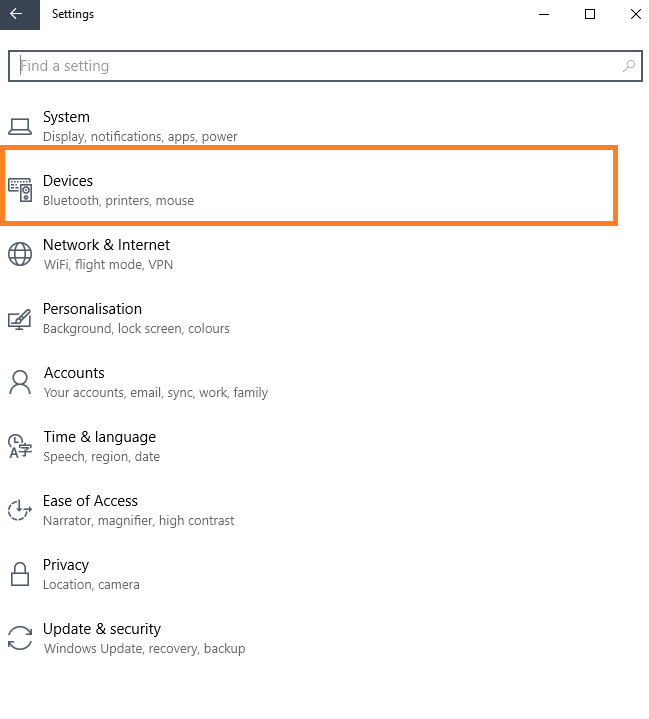
    • Go to System Settings; click on Devices.
    • Select Mouse & Touchpad.
    • Screenshot

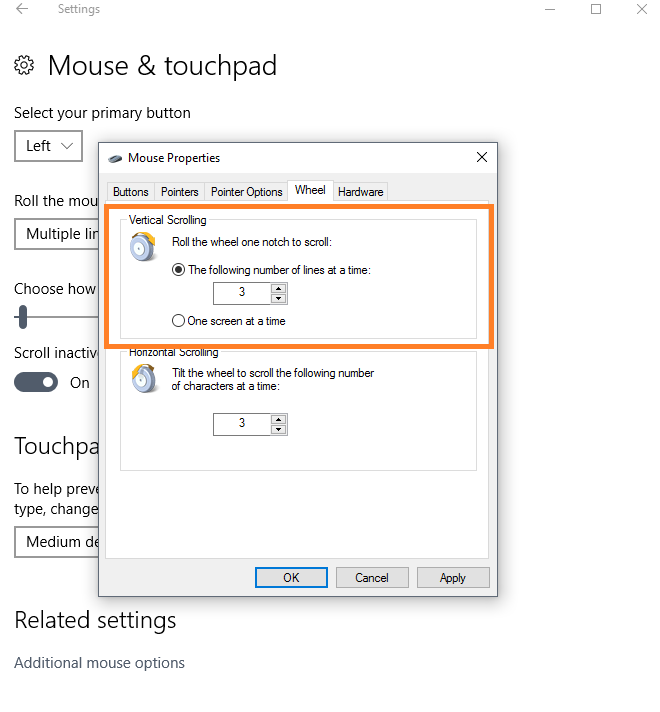
    • At the end of this Devices page, you will see Additional mouse options. Click on that.
    • Now, select the 4th tab Wheel and adjust vertical scrolling from 3 to 1 temporarily.
    • Screenshot

    • Click on Apply and OK.

    You can check if your problem is fixed by scrolling web pages. If it works a little slow you can revert back to vertical scrolling from 1 to 3 by the same procedure.

    Strangely enough, this resolved my impossible scrolling issue and now I can select any scrolling speed and everything seems to be working fine for me.

    Let me know how this goes for you. Or if you have any other method to share please feel free to comment. I will add that method in this post.

    Update

    Well, it didn’t work out for me in the long run. It looks like, I have to reinstall the OS to get my touchpad working again.

    I will do that this week and hopefully will update the post as soon as I find out the solution.

  • Useful Google Chrome Keyboard Shortcuts – Linux + Windows + Mac

    Useful Google Chrome Keyboard Shortcuts – Linux + Windows + Mac

    Looking for Google Chrome keyboard shortcuts to boost browsing speed? I have compiled a list of all major keyboard shortcuts which you can use on a variety of operating systems such as Linux, Windows, and Mac. You would obviously need to install Google Chrome browser to use any of these shortcuts.

    Also, check out these useful Google Docs Hacks to boost productivity.

    By using keyboard shortcuts you can boost your browsing speed on Google Chrome. If you are new to computers, you can get used to these shortcuts and get things done on your browser real quick.

    I broke down 2 tables; 1st one is Windows + Linux and second one is Mac only.

    Google Chrome keyboard Shortcuts Windows and Linux

    ActionShortcut
    Open a new windowCtrl + n
    Open a new window in Incognito modeCtrl + Shift + n
    Open a new tab, and jump to itCtrl + t
    Reopen the last closed tab, and jump to itCtrl + Shift + t
    Jump to the next open tabCtrl + Tab or Ctrl + PgDn
    Jump to the previous open tabCtrl + Shift + Tab or Ctrl + PgUp
    Jump to a specific tabCtrl + 1 through Ctrl + 8
    Jump to the last tabCtrl + 9
    Open your home page in the current tabAlt + Home
    Open the previous page from your browsing history in the current tabAlt + Left arrow
    Open the next page from your browsing history in the current tabAlt + Right arrow
    Close the current tabCtrl + w or Ctrl + F4
    Close all open tabs and the browserCtrl + Shift + w
    Minimize the current windowAlt + Space + n
    Maximize the current windowAlt + Space + x
    Close the current windowAlt + F4
    Quit Google ChromeCtrl + Shift + q
    Open the Chrome menuAlt + f or Alt + e or F10
    Show or hide the Bookmarks barCtrl + Shift + b
    Open the Bookmarks ManagerCtrl + Shift + o
    Open the History page in a new tabCtrl + h
    Open the Downloads page in a new tabCtrl + j
    Open the Chrome Task ManagerShift + Esc
    Set focus on the first item in the Chrome toolbarShift + Alt + t
    Switch focus forward between the Address bar, Bookmarks bar (if showing), and page contentF6
    Switch focus backward between the Address bar, Bookmarks bar (if showing), and page contentShift + F6
    Open the Find Bar to search the current pageCtrl + f or F3
    Jump to the next match to your Find Bar searchCtrl + g
    Jump to the previous match to your Find Bar searchCtrl + Shift + g
    Open Developer ToolsCtrl + Shift + j or F12
    Open the Clear Browsing Data optionsCtrl + Shift + Delete
    Open the Chrome Help Center in a new tabF1
    Log in a different user or browse as a GuestCtrl + Shift + m
    Open a feedback formAlt + Shift + i
    Open options to print the current pageCtrl + p
    Open options to save the current pageCtrl + s
    Reload the current pageF5 or Ctrl + r
    Reload the current page, ignoring cached contentShift + F5 or Ctrl + Shift + r
    Stop the page loadingEsc
    Browse clickable items moving forwardTab
    Browse clickable items moving backwardShift + Tab
    Open a file from your computer in ChromeCtrl + o + Select a file
    Display non-editable HTML source code for the current pageCtrl + u
    Save your current webpage as a bookmarkCtrl + d
    Save all open tabs as bookmarks in a new folderCtrl + Shift + d
    Turn full-screen mode on or offF11
    Make everything on the page biggerCtrl and +
    Make everything on the page smallerCtrl and –
    Return everything on the page to default sizeCtrl + 0
    Scroll down a webpage, a screen at a timeSpace or PgDn
    Scroll up a webpage, a screen at a timeShift + Space or PgUp
    Go to the top of the pageHome
    Go to the bottom of the pageEnd
    Scroll horizontally on the pageShift + Scroll your mousewheel
    Move your cursor to the front of the previous word in a text fieldCtrl + Left arrow
    Move your cursor to the back of the next word in a text fieldCtrl + Right arrow
    Delete the previous word in a text fieldCtrl + Backspace
    Move focus to a notificationAlt + n
    Allow within a notificationAlt + Shift + a
    Deny within a notificationAlt + Shift + d
    Open the Home page in the current tabAlt + Home

    Google Chrome Keyboard Shortcuts for Mac OS

    ActionShortcut
    Open a new window⌘ + n
    Open a new window in Incognito mode⌘ + Shift + n
    Open a new tab, and jump to it⌘ + t
    Reopen the last closed tab, and jump to it⌘ + Shift + t
    Jump to the next open tab⌘ + Option + Right arrow
    Jump to the previous open tab⌘ + Option + Left arrow
    Jump to a specific tab⌘ + 1 through ⌘ + 8
    Jump to the last tab⌘ + 9
    Open the previous page in your browsing history for the current tab⌘ + [ or ⌘ + Left arrow
    Open the next page in your browsing history for the current tab⌘ + ] or ⌘ + Right arrow
    Closes the current tab or pop-up⌘ + w
    Closes the current window⌘ + Shift + w
    Minimize the window⌘ + m
    Hide Google Chrome⌘ + h
    Quit Google Chrome⌘ + q
    Show or hide the Bookmarks Bar⌘ + Shift + b
    Open the Bookmark Manager⌘ + Option + b
    Open the Settings page in a new tab⌘ + ,
    Open the History page in a new tab⌘ + y
    Open the Downloads page in a new tab⌘ + Shift + j
    Open the Find Bar to search the current page⌘ + f
    Jump to the next match to your Find Bar search⌘ + g
    Jump to the previous match to your Find Bar search⌘ + Shift + g
    When Find Bar is open, search for selected text⌘ + e
    Open Developer Tools⌘ + Option + i
    Open the Clear Browsing Data options⌘ + Shift + Delete
    Log in as a different user or browse as a Guest⌘ + Shift + m
    Open options to print the current page⌘ + p
    Open options to save the current page⌘ + s
    Open the Page Setup dialog⌘ + Option + p
    Email your current page⌘ + Shift + i
    Reload your current page⌘ + r
    Reload your current page, ignoring cached content⌘ + Shift + r
    Stop the page loadingEsc
    Browse clickable items moving forwardTab
    Browse clickable items moving backwardShift + Tab
    Open a file from your computer in Google Chrome⌘ + o + Select a file
    Display non-editable HTML source code for the current page⌘ + Option + u
    Open the JavaScript Console⌘ + Option + j
    Save your current webpage as a bookmark⌘ + d
    Save all open tabs as bookmarks in a new folder⌘ + Shift + d
    Turn full-screen mode on or off⌘ + Ctrl + f
    Make everything on the page bigger⌘ and +
    Make everything on the page smaller⌘ and –
    Return everything on the page to the default size⌘ + 0
    Scroll down a webpage, a screen at a timeSpace
    Scroll up a webpage, a screen at a timeShift + Space
    Search the web⌘ + Option + f
    Move your cursor to the front of the previous word in a text fieldOption + Left arrow
    Move your cursor to the back of the next word in a text fieldOption + Right arrow
    Delete the previous word in a text fieldOption + Delete
    Open your home page in the current tab⌘ + Shift + h


    I hope you find these keyboard shortcuts useful. If you are by any chance using Mozilla Firefox, then check out Mozilla Firefox keyboard shortcuts as well. Please subscribe for my weekly newsletter to get useful updates in your email inbox.

  • Download Songs from SoundCloud to Your Android Phone

    Download Songs from SoundCloud to Your Android Phone

    Are you looking for a way to download songs from your SoundCloud app to your Android phone? The good news is, you can download any song on your mobile phone memory.

    SoundCloud is an online audio distribution platform and music sharing website based in Berlin, Germany that enables its users to upload, promote, and share audio. There are many mainstream artists as well as some underground musicians who upload their music on this website.

    How to Download Tracks from Soundcloud (Official method)

    On Web, you can download tracks once you have signed in to your SoundCloud account by clicking on the download file button beneath the waveform:

    You can enable, or disable downloads for your listeners through your track’s Permissions tab. Enabling downloads means that your listener can have a copy of your original file format that you have uploaded to SoundCloud.

    Please note: Not all tracks are downloadable. If you don’t see a download file button, it means the user who uploaded it did not intend for it to be downloadable. Additionally, only individual tracks can be downloaded and playlists as a whole are not available.

    Saving content on mobile devices

    Music disk

    It is not possible to download a track from a mobile device. However, users with a SoundCloud Go or Go+ subscription can save content for offline listening on a mobile device.

    Disclaimer: This tutorial is for educational purposes only. If you like the song and want to download the then please support the artist and buy the song from SoundCloud, Spotify or Google Play store.

    How to Download Songs from SoundCloud Android App to Your Phone Memory?

    Step 1: if you don’t have SoundCloud app on your Android phone, then first download SoundCloud app. Register your account on SoundCloud.

    Step 2: Now, download SoundLoader app from PlayStore. It is an amazing app, which make downloading songs from SoundCloud easier for the end user.

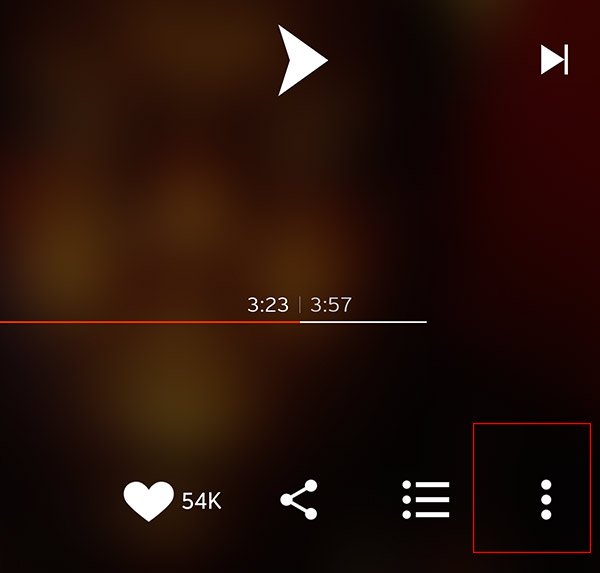
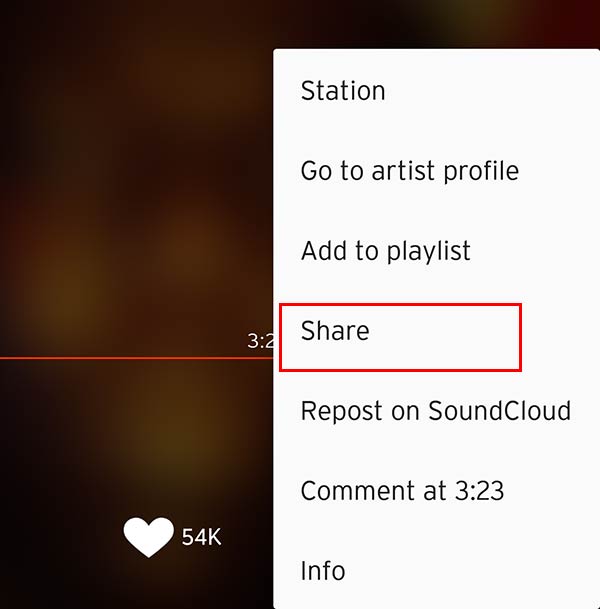
    Step 3: Go to your SoundCloud app, and search for your favorite song that you want to save in your phone memory. You will find a 3 vertical dot icon at the bottom of the screen.

    Download songs from SoundCloud

    Step 4: Clicking on it will open up a new menu. From there, tap on Share button.

    Share a song from SoundCloud

    Step 5: Find the app icon SoundLoader from the sharing options. When you click on it, this will start downloading your favorite song to your phone memory. You can use this amazing feature to download as many songs as you want.

    Websites to Download SoundCloud Music

    These are third party websites which can be used to download a song from Soundcloud to any device. You need to copy a URL of the track that you want to download and paste it on the website.

    Android Apps to Download Songs from SoundCloud

    • My Cloud Player: SoundCloud player with ChromeCast, Upnp/Dlna and Last.fm support.
    • SoundHound: Hey, what song is that? SoundHound 8 makes it simple to discover music playing around you. Whether you’re in the car or out and about, open the app, hit the big orange SoundHound button, let your phone listen for a few seconds, and we’ll tell you exactly what’s playing! Some folks have called it pure magic, and we tend to agree.
    • Hound voice: Want to try something more advanced? Hound can use follow-up questions and commands to filter, sort, or add more information to the original request. Give this a shot: “OK Hound… Find Asian restaurants rated 4 stars or more within walking distance of Times Square and exclude Chinese, Korean, and Thai”

    You can also share this article with your friends to let them know this cool way to download songs from SoundCloud to your Android phone for free. However, please keep that in mind downloading copyrighted stuff is illegal in some countries and it could cause you some serious trouble.

  • Gallery Lag Fix for Samsung Galaxy S3 GT-I9300

    Gallery Lag Fix for Samsung Galaxy S3 GT-I9300

    Samsung Galaxy SIII (GT-I9300) is my first ever Samsung device, I am using Android OS for a year or so but had not bought any Samsung device before. I am now stuck with the beauty of Touchwiz for now. I have rooted my phone for changing ROMs but I didn’t like any other custom ROM. In my personal opinion, Samsung TouchWiz ROM is perfect for this device.

    Still time to time, I face some problems with this device, like I have noticed the heavy lag in the Jellybean gallery app. It made the scrolling a bit choppier. I tried this lag fix by my own and fixed that heavy lag issue in the gallery app. You don’t need any third party application to apply this lag fix. You just need to stop the Picasa and Facebook photo syncing from the settings. Also, you need to delete the old data & cache from the gallery and SNS app. Here is a complete noob friendly guide:

    Important Note: By applying this lag fix you will lose your Facebook and Picasa synchronized photos, and data from the gallery app. I would highly recommend to backup all of your photos and data to Dropbox or on your computer.

    Gallery Lag Fix

    • First of all, backup all your device photos to the computer by plugging your device via USB cable.
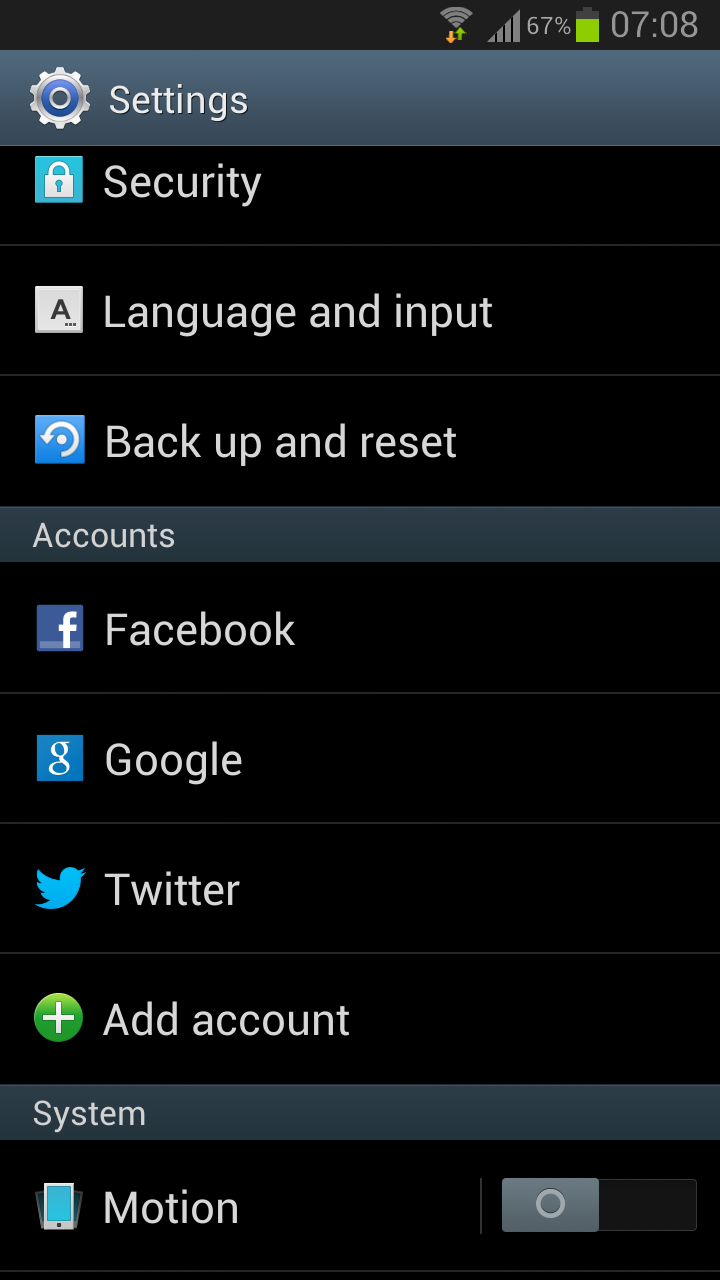
    • Go to settings, under account first tap on the facebook. Now click on the username with the sync icon.
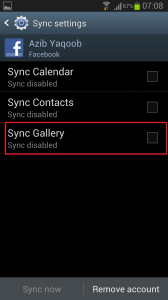
    • Settings Samsung S3Uncheck Sync Gallery and move back to settings.
    • Un Sync Gallery
    • Now, select Google under the Accounts. Tap on the email address with sync icon, uncheck these boxes Sync Google Photos and Sync Picasa Web Albums.
    • Move back to settings, open Application Manager. Now go to last tab “ALL” in the application manager.
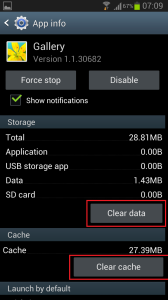
    • Find the Gallery App there, tap on it. Now Clear Cache and Clear Data.
    • Samsung Galaxy S3 Gallery Lag
    • Move back to the Application Manager, in ALL tab find the app SNS. Clear cache and data of this app as well.
    • Now, restart your phone. Wait for 1 or 2 minutes to fully load the Operating system. Now open the gallery app if it’s still showing the same lag as before let me know.

    Note: After rebooting the phone, the gallery needs to re-build the cache again. It may lag once or twice. But when you use it for some time it will not lag as it was lagging while the syncing was enabled. Let me know in the comments if this lag fix has worked for you.

    If you’re having difficulty charging up your Galaxy s3 then read this post on how to fix slow charging on Galaxy S3.