Blog

  • How to Convert Videos to Play on an Android and iPhone Device

    How to Convert Videos to Play on an Android and iPhone Device

    I was looking for a way to convert a video file for an iPhone or an Android device. Unfortunately, there was not enough information about iPhone and Android video conversion process. So, I decided to write a post; I hope this will help people who want to convert videos for their iPhone, iPad, or an Android phone.

    In this post, we will first look at what video formats are supported by iPhone, iPad or Android. Then we will use WinFF, an open source video converter to convert files into a format supported by these devices. Then you can copy these converted video files to your iPhone or an android powered phone and watch them.

    First, we have to download the WinFF video converter to convert video files. You can download Winff from here:

    Download WinFF

    Video Formats Supported by iPhone and iPad

    • H.264 video up to 720p, 30 frames per second, Main Profile level 3.1 with AAC-LC audio up to 160 Kbps, 48kHz, stereo audio in .m4v, .mp4, and .mov file formats.
    • MPEG-4 video, up to 2.5 Mbps, 640 by 480 pixels, 30 frames per second, Simple Profile with AAC-LC audio up to 160 Kbps per channel, 48kHz, stereo audio in .m4v, .mp4, and .mov file formats.
    • Motion JPEG (M-JPEG) up to 35 Mbps, 1280 by 720 pixels, 30 frames per second, audio in ulaw, PCM stereo audio in .avi file format.

    Video Formats Supported by Android Phones and Devices

    • H.263|3GP (.3GP) and MPEG-4 (mp4)
    • H.264 AVC| 3GP (.3gp) and MPEG-4 (.mp4) MPEG-TS (.ts, AAC audi only, not seekable Android 3.0+)
    • MPEG-4 SP| 3GPP (.3gp)
    • VP8|WebM (.webm)

    How to Convert a Video for an iPhone Device

    Open Winff software and install it on your computer.

    Now open Winff and click on add button.

    How to convert Videos for Android Phones 2

    Select a video from your computer and add it.

    Look below at the bottom of the blank area. There will be the option Output Details.

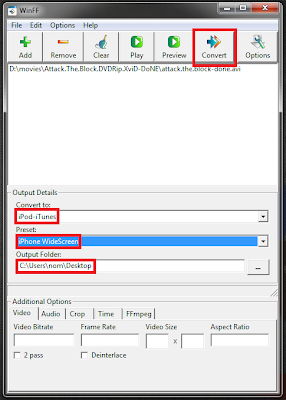
    Set convert to = iPod-iTunes

    Set Preset to = iPhone WideScreen

    Output folder = give the destination of the folder where you want to save your converted video file on your computer.

    Now click on the convert button to convert your video file.
    How to convert Videos for iPhone 2

    This process will take some time to finish. It depends on the size of your video file. When it finishes off, copy that file into your iPhone.

    How to Convert Video for an Android Device

    Open winff, click on the add button.

    Choose a video file from your computer for conversion.

    Set convert to = MPEG-4.

    Select Preset to = MPEG-4 H.264 (High Quality).

    Output folder: give the destination of the folder in which you want to save this converted video file.

    Now click on the convert button. It will take some time (depend on your video file size).
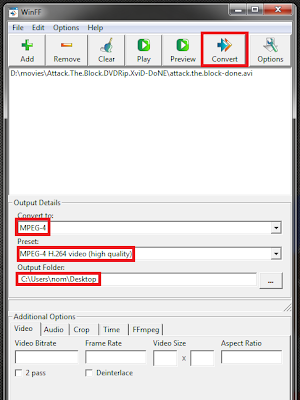
    How to convert Videos for Android phone 1

    That’s it. Now you can play and enjoy videos on your iPhone and Android phones. If you find any problems while applying these instructions, you can ask me in the comments below.

  • How to schedule a post on blogger

    Did you know you can schedule your blog posts in blogger? I didn’t know about this feature and just discovered it. This feature allows you to schedule your blog posts to appear on the specific time and date. It will be helpful for you if you want to write different posts and want them to get published automatically on specified time. Here is how to do it:

    First login to your blogger account.
    Go To blogger Dashboard; choose your blog in which you want to schedule your post.
    Go to New Post option and Write a post (if you want to test this feature write some random words).
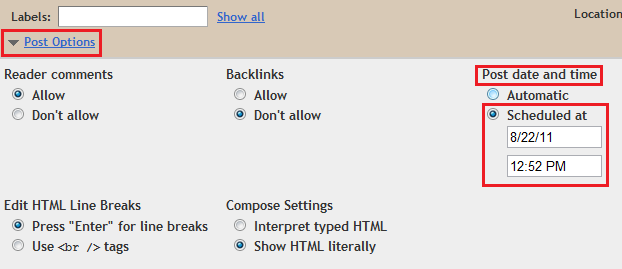
    See at the bottom of your post ‘Post Options’.
    Click on post option.  An expand menu will appear.
    Choose ‘post and time’ option to ‘schedule at’.
    Change the time to your desired post time.
    Click on ‘Publish Post’.

    Now, your post will go into queue. Post will not show until schedule date and time.
    That’s it. You can schedule as many blog posts as you wish.

    If you want to Schedule your status updates on facebook or Twitter. You can see my previous post
    Schedule Tweets & Facebook Updates for a specific time

  • 5 Simple Tips: How to Improve Torrent Download Speed


    Note
    : downloading some torrents could be illegal in some countries.

    If you are new to torrents, You can see my previous post about how to download torrent files. Most new torrent downloaders often complain about slow download speeds. Here are a few tips to help you increase your torrent download speed.

    1Choose Right File to download

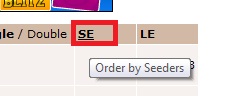
    When you go to torrent search engines and type to search your file, you have to choose torrent which has more seeds. Usually most torrent search engines allow you to sort search results by number of seeders.
    Click on seeds and the search results will be displayed by number of seeds. You can then download a file with the most seeders.

    2- Select a right BitTorrent client

    There are many BitTorrent clients available to download but not all of them are user friendly. I use uTorrent for downloading torrent files. Utorrent is more reliable and easy to use. You can find more BitTorrent clients on Wikipedia top 50 BitTorrent clients list. Here are a few good Torrent clients:

    1. uTorrent
    2. Vuze
    3. BitTorrent (mainline)
    4. BitTornado
    5. BitComet

    3- Reduce Upload speed

    Upload speed affect the download speed in Bittorrent clients directly. You can increase or decrease download and upload speed in Utorrent anytime (while you are downloading something). Don’t maximize your upload speed it may cause problems in browsing. You can check your speed by going to this URL. I have 200KB download speed and I set upload speed to 10KB this increases my download speed. Once my download is finished I change the upload limit to 0 (which means unlimited) so that other people can download that file from me.
    Remember it is important that you seed every file you download for a while this is your way of saying thank you and giving back.

    4-Speed up torrents with low seeders

    Sometimes you can’t find healthy torrent files on torrent search engines. If you are facing this problem , Don’t worry it has a fix. Download the torrent which has low seeds and leechers and go to btReAnnouncer. Upload your unhealthy torrent. It will add more trackers to your torrent file which will surely increase seeds and leechers.

    5-Change the Default port

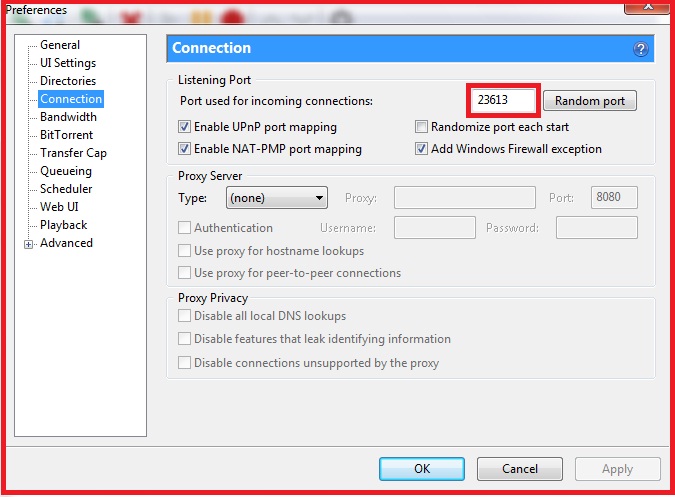
    By default, BitTorrent uses a port 23613. You can change port number to any number above 10000. Go to preferences> Connection > see left side of random port. Add any port number above 10000. Click Apply> Ok.

    I hope these tips help you improve your torrent download speeds. If you are facing troubles when applying these tips, feel free to ask in the comment box below. If you found this post useful please join us on Facebook.

  • How to Set a Video as Your Desktop Wallpaper using VLC Player

    You will probably enjoy this feature of VLC player in which you can change the desktop wallpaper to the Video.

    First thing you have to do is download VLC Player.
    When your download complete open VLC player.
    Go to Tools> Preferences.

    Click on the video button at the left side of preferences window.
    Find Output menu. Under The Menu Select ‘DirextX Video Output’ or ‘DirectX (DirectDraw) Video Output. 
    Click Save at the bottom of preferences window.

    Now, restart VLC player.
    Open a movie/video file in VLC player.
    Right-Click on the Video Screen and a menu appears.
    In the video Menu Select> directX Wallpaper.

    You can also get this result by selecting Video Tab at the menu bar of your VLC media player.
    Then Click on DirectX Wallpaper.
    Now. you can watch whole movie as a wallpaper and you can also browse the Internet.

    Note: If you are using windows7 Aero theme,  a warning may appears at the bottom Taskbar. When you set video as wallpaper your Windows theme will be automatically change to Windows7 Basic Theme. You don’t have to worry about it. When you Close the media player Your Windows7 Basic theme set back to your customize theme.

    If you want to disable this option you can go to Prefrences again Click video tab at the left of the preferences window.
    Select output to Default, click Save.
    Now open VLC Media player and play a movie file. Right click on the video and a menu appears Un-Tick the option DirectX Wallpaper.

    If you want to add subtitle to your Video. See my previous post add subtitle in Movie File.
  • How to Chat on Local Area Network

    There are many software available to connect chat on your Local Area Network. It is sometimes important to have a chat option enabled on your local area network in order to connect and talk with multiple people over your network simultaneously.

    If you want to install a small chat room to communicate with other people on your computer network. You can use Achat. It’s simple to use and it is Open source, which basically means it is free.

    Achat is an open source (under the license of GPL) application which allows you to be in touch with other people on Local Area Network.

    A chat is UNICODE program Designed for LAN (Local Area Network).

    Some Features:

    • chatting in the Main channel where everyone on your LAN sees you
    • You can create your own chatting channels
    • You can send private messages to other people.
    • You can show a screenshot of your own desktop with other people using ‘screen show’ feature.
    • Send as many files you want to send.
    • Send Message to other offline users.

    Download AChat

  • How To Manage, Delete, and Reveal saved passwords in Google Chrome

    In my opinion, Google Chrome is the fastest web browser. It is more reliable and faster than other browsers. Google Chrome has a built-in feature to save website passwords. The browser then automatically completes the sign in fields and redirects you to the website.

    It is useful if you do not share your computer and internet connection with anyone. You can change these settings easily and tell Google Chrome to forget passwords for specific sites, store passwords for some, or not at all ask to save your passwords again.

    • Click on the Wrench Icon  at the top right corner of Chrome Window.

    • Select Option from drop down menu. (Preferences on MAC and Linux, Settings on Chrome OS)
    • Now select Personal Stuff from left sidebar. These options let you modify a few of the more personal aspects, including syncing data and themes.
    •  Now look for Passwords option. Click on Manage Saved Passwords.

    Tip: If you want to directly go to Password management page. Put chrome://settings/passwords to your address bar.

    • Now you will see a list of websites, passwords and user names.
    • X’ at the right side of the phrase is meant to delete this password from Google Chrome Saved passwords list. If you want to delete some of these passwords you can click on ‘X’.
    • If you want to see your forgotten password of some website you can click on the phrase of website.
    • For example, you have forgotten your Youtube username or password. See the list and find Http://youtube.com . When you find a website click on it. At the password side a button will appear ‘Show’. It will show you the password of your Youtube account.

    • If you don’t want Chrome ever save your passwords. Go to Wrench IconOptions> Personal Stuff >  Passwords> Click on Never save passwords.