Category: Windows

Learn to use different programs and applications, fix errors and improve productivity on Windows Operating Systems.

  • How to Detect Virus and Spyware on your Windows 7, 8 or 10 Computer?

    How to Detect Virus and Spyware on your Windows 7, 8 or 10 Computer?

    It doesn’t matter how you are saving your computer from virus and spyware.

    There are still chances that your computer is needed a scan for virus. There are many things that can infect your computer with virus such as downloading files from the Internet, receiving files via instant messaging, Bluetooth, Portable devices, mobile phones, USB, and memory card reader.

    Any external device connected with your computer might infect it with a virus. If you are feeling suspicious about your computer health then you should definitely run a scan on your computer.

    In this tutorial, I am going to show you how to detect virus and spyware on your Windows 7, 8, or 10 OS computer. Please use the step by step method and let me know if you face any issue while following this tutorial.

    Remember: The process of a full scan in windows defender program might take a long time. So, before running a full scan on your computer make sure that you have a couple of hours of free time.

    What is a Computer Virus?

    A computer virus is a type of malicious software that, when executed, replicates itself by modifying other computer programs and inserting its own code. When this replication succeeds, the affected areas are then said to be “infected” with a computer virus.

    Top Free Antivirus Software for Windows

    How to Detect a Virus on Your Windows Computer?

    Turn on your computer, click on the start menu button at the left down corner of your desktop.

    Now, in the search box type this ‘windows defender’.

    When windows defender open, click on  full scan.

    Now, it will take around a few hours. So be patient and wait to finish it.

    When the scan will complete windows defender will tell you how many harmful items it detected on your computer and ask you to clean it.

    Click on clean system.

    Another window will open and windows defender will ensure all the actions are applied completely.

    Now your scan is complete. if the error or Trojan you think is still there on your computer after the scan then you should re-install Windows OS or restore previously backed up system image.

    If you like this post and want to make sure your family and friends stay safe from virus and trojans, please consider sharing this post.

  • 5 Simple Tips: How to Improve Torrent Download Speed


    Note
    : downloading some torrents could be illegal in some countries.

    If you are new to torrents, You can see my previous post about how to download torrent files. Most new torrent downloaders often complain about slow download speeds. Here are a few tips to help you increase your torrent download speed.

    1Choose Right File to download

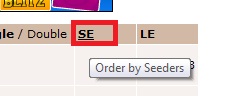
    When you go to torrent search engines and type to search your file, you have to choose torrent which has more seeds. Usually most torrent search engines allow you to sort search results by number of seeders.
    Click on seeds and the search results will be displayed by number of seeds. You can then download a file with the most seeders.

    2- Select a right BitTorrent client

    There are many BitTorrent clients available to download but not all of them are user friendly. I use uTorrent for downloading torrent files. Utorrent is more reliable and easy to use. You can find more BitTorrent clients on Wikipedia top 50 BitTorrent clients list. Here are a few good Torrent clients:

    1. uTorrent
    2. Vuze
    3. BitTorrent (mainline)
    4. BitTornado
    5. BitComet

    3- Reduce Upload speed

    Upload speed affect the download speed in Bittorrent clients directly. You can increase or decrease download and upload speed in Utorrent anytime (while you are downloading something). Don’t maximize your upload speed it may cause problems in browsing. You can check your speed by going to this URL. I have 200KB download speed and I set upload speed to 10KB this increases my download speed. Once my download is finished I change the upload limit to 0 (which means unlimited) so that other people can download that file from me.
    Remember it is important that you seed every file you download for a while this is your way of saying thank you and giving back.

    4-Speed up torrents with low seeders

    Sometimes you can’t find healthy torrent files on torrent search engines. If you are facing this problem , Don’t worry it has a fix. Download the torrent which has low seeds and leechers and go to btReAnnouncer. Upload your unhealthy torrent. It will add more trackers to your torrent file which will surely increase seeds and leechers.

    5-Change the Default port

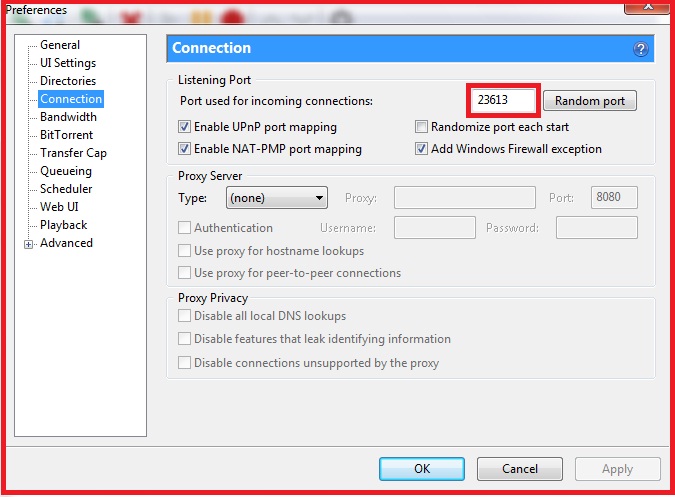
    By default, BitTorrent uses a port 23613. You can change port number to any number above 10000. Go to preferences> Connection > see left side of random port. Add any port number above 10000. Click Apply> Ok.

    I hope these tips help you improve your torrent download speeds. If you are facing troubles when applying these tips, feel free to ask in the comment box below. If you found this post useful please join us on Facebook.

  • How to Set a Video as Your Desktop Wallpaper using VLC Player

    You will probably enjoy this feature of VLC player in which you can change the desktop wallpaper to the Video.

    First thing you have to do is download VLC Player.
    When your download complete open VLC player.
    Go to Tools> Preferences.

    Click on the video button at the left side of preferences window.
    Find Output menu. Under The Menu Select ‘DirextX Video Output’ or ‘DirectX (DirectDraw) Video Output. 
    Click Save at the bottom of preferences window.

    Now, restart VLC player.
    Open a movie/video file in VLC player.
    Right-Click on the Video Screen and a menu appears.
    In the video Menu Select> directX Wallpaper.

    You can also get this result by selecting Video Tab at the menu bar of your VLC media player.
    Then Click on DirectX Wallpaper.
    Now. you can watch whole movie as a wallpaper and you can also browse the Internet.

    Note: If you are using windows7 Aero theme,  a warning may appears at the bottom Taskbar. When you set video as wallpaper your Windows theme will be automatically change to Windows7 Basic Theme. You don’t have to worry about it. When you Close the media player Your Windows7 Basic theme set back to your customize theme.

    If you want to disable this option you can go to Prefrences again Click video tab at the left of the preferences window.
    Select output to Default, click Save.
    Now open VLC Media player and play a movie file. Right click on the video and a menu appears Un-Tick the option DirectX Wallpaper.

    If you want to add subtitle to your Video. See my previous post add subtitle in Movie File.
  • How to Prevent Computer Virus

    Virus mostly spread through portable devices such as Flash Disks, Floppy disks, via computer networks, Emails and online downloads. In this tutorial I will show you some useful tips to prevent your computer from Viruses.

    • Antivirus: Install an Antivirus program. There are many Antivirus programs available on the Internet. Both paid and free. You must have an antivirus program installed on your computer. Every month you should upgrade Antivirus program. 
    • Email: Never Click on undefined source E-Mail attachments. Always be careful when you check your E-mails.
    • Instant Messaging: You might use instant messiging services such as G-mail, MSN, Yahoo and AIM. May be your friend send you an attachment. You will accept it directly instead of thinking what he/she’s sending. If you see your friend sent you an attachment you must ask your friend that you really sent this attachment. Because sometime Virus itself spread through Internet via Insant messaging and E-mails. 
    • Internet Surfing: You must be cautious when surfing Internet. You can get a malicious script from a webpage and not know it. If you ever find a window asking ‘you want to allow an automatic install’, say “No” except you know the site requesting the install.
    • Firewall: secure your Internet connection using a firewall.
    • Portable Devices: Don’t always connect un-trusted Mp3 players, USB devices, CD’s and Floppies. Don’t connect un-trusted bluetooth devices to your computer. 
    • Browser: Browsers such as Opera, Mozilla Firefox and Google Chrome has a better security than Internet Exploror.
    • Downloads: If you ever feel suspicious about any download file on the Internet don’t download it. Untill you find any other good trusted source to download the file. You should see people response/Comment boxes below of the download file to make sure this source is reliable. 
  • How to stream Youtube Videos directly in VLC Media Player

    How to stream Youtube Videos directly in VLC Media Player

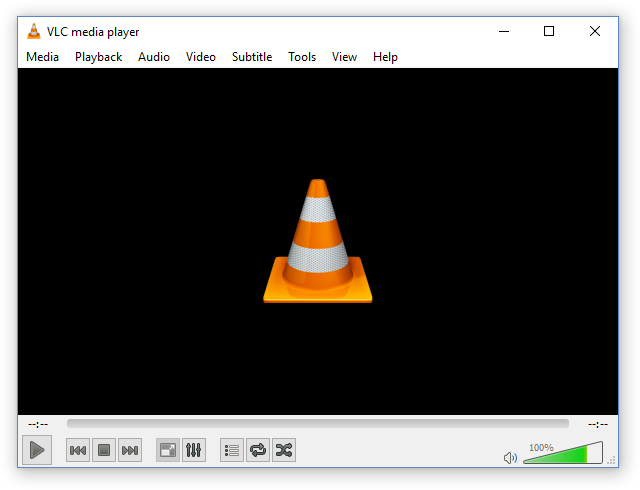
    VLC is an open source program which plays almost every multimedia file. The VLC player is free of cost. It was first introduced in the Linux platform but after the success of VLC; now it is available on every major operating system. If you have never used it before; use it today, I am sure you will like it.

    VLC Media Player

    VLC is a free and open source cross-platform multimedia player and framework that plays most multimedia files as well as DVDs, Audio CDs, VCDs, and various streaming protocols.

    If you want to stream Youtube video files in VLC media player for fun or you get bored of Youtube Interface.  Here is a tip for you.

    • Open VLC Media Player.
    • Click Media > Stream  (or simply just press Ctrl+S.)
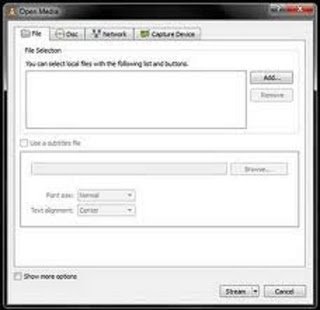
    • A box will appear like this,
    • How to Stream Youtube Videos Directly in VLC media Player-1

    • Click on tab Network.
    • Now, you need to copy Youtube video URL from address bar.
    • Go to Youtube.com, search for your favorite video and play it.
    • Copy the link from address bar and paste it to Network tab in VLC.
    • At the end of box you can see the the buton Stream.
    • Click on drop down arrow next to the stream button.
    • Click On Play button.

    Your Video will appear in VLC after few moments. Now you can stream videos in VLC and have fun.

    Watch Entire YouTube Playlists in VLC

    Go to the YouTube playlist on a browser window and copy the link to that playlist.

    Run VLC Media Player, go to View > Playlist or press Ctrl + L.

    play youtube video VLC.

    Now press Ctrl + N to open the section Open Media on VLC and here paste the previously copied YouTube playlist link. And, press the button Play or Enter.

    How to Set a Video as Your Desktop Wallpaper using VLC Player
    Add a Subtitle to Your Movie using VLC Player

  • Tune Your Guitar with a Computer Software or Mobile App

    Tune Your Guitar with a Computer Software or Mobile App

    If you are looking for a way to easily tune your guitar then you come to the right place.  I am sharing here different ways which you can use to tune your guitar without spending any money on expensive guitar tuners.

    This APTUNER software is very useful for every guitarist who is looking for a way to tune the guitar. Whether you are using electric guitar or Acoustic it doesn’t matter. APTUNER works for both.

    You just need to download this software from their official website and it’s free of cost.

    If you have an Electric guitar then plug your guitar in the line-in port of your PC.

    Select a tuning option whether you want to drop down tuning or Simple E guitar tuning.

    Pluck one string step by step starts with Higher E (thick one) without pressing any note on your fretboard.

    Now, See at the screen of your APTUNER. It frequently changing notes on the meter.

    Pick your tuning key at the end of your fretboard.

    Tune it until you find the note E on your meter of APTUNER.

    Now take a meter reading to the level of 0 Which is in center of tuning meter.

    Pluck second string like above E String until you find A note on your meter. Now tune all strings like this.

    If you have an Acoustic guitar without any sound equalizer or built-in Mic. You just need to change the settings of APTUNER  Go To Recoding > Windows Recording Control > Tick on the built-in mic of your PC.

    Now you can easily tune your guitar by mic the same procedure as above.

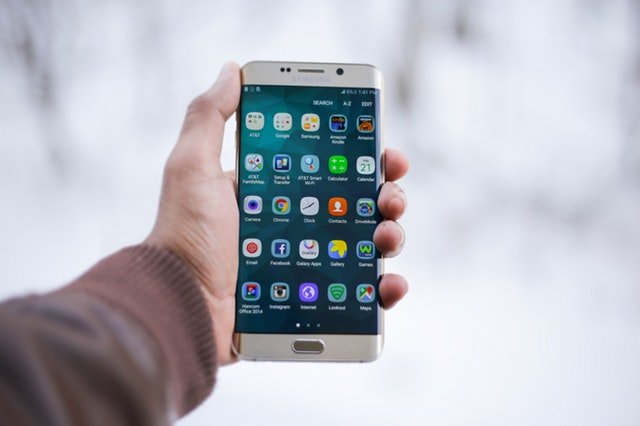
    When I wrote this article, smartphones weren’t a thing. However, I am updating this article after years so I thought why not share some other smartphone applications for both Android and iOS devices.

    iOS Apps to Tune Your Guitar

    iOS apps

    Here are the top 5 guitar tuner apps which you can use on an iOS device such as iPhone, or iPad.

    • GuitarTuna: This is not just a guitar tuner: we’ve got +100 tunings for 15 instruments! It’s fast, accurate and easy to use. GuitarTuna has been downloaded over 80 million times, which makes it the most downloaded tuning app in the world.
    • Guitar Tuner – Ukulele & Bass: DoubleTune is an advanced tuning app created by professional musicians. It’s suitable for tuning a range of string musical instruments, learning new chords and refreshing your memory of already-learned ones. Competitive educational games are equally useful for beginners and mastered guitar players. One way or another, DoubleTune is a must-have app for any musician.
    • Fender Tune – Guitar Tuner: Fender Tune is the 5-star rated, easy-to-use, super-accurate tuner app for guitar, bass & ukulele from Fender®.
    • Tuner Lite by Piascore: “Tuner Lite by Piascore” is a chromatic instrument tuner and pitch pipe that allows you to quickly and accurately tune your instrument using the built-in mic in your iPhone or iPad.
    • Guitar Tuner Easy tune chords: CoachTuner is a FREE chromatic instrument tuner that allows you to quickly tune your guitar, bass and ukulele using the built-in mic of your iPhone/iPad/iPod. CoachTuner can tune acoustic or electric guitar, bass, ukulele. It’s easy to use for beginners and it’s Free.

    Android Apps to Tune Your Guitar

    Android Apps

    Here are some very useful Android apps that you can use on your Android-based tablet or phone.

    • Boss Tuner: The BOSS Tuner app brings BOSS’s trusted and world-renowned chromatic tuning technology to Android mobile devices. Available as a free download, the convenient app features the familiar look and intuitive display style of the best-selling TU-3 / TU-3W pedal tuner. Using the mic in your Android device, you can tune a guitar, bass and other instruments like violin, cello, brass, etc.
    • Chromatic Guitar Tuner: Chromatic Guitar Tuner is a fast, accurate and easy-to-use app offering pro level of tuning precision!
    • Cifra Club Tuner: Just play a note of your instrument to tune it anywhere using your smartphone or tablet!
      To tune your string instruments, such as acoustic guitar, guitar, bass, and cavaquinho, follow the on-screen pointer and look at the note and frequency that are closest to the played string.
    • DaTuner: DaTuner is an all-purpose, precise and responsive chromatic tuner app for Android with a simple interface. Rather than focusing on fancy graphics assets, we made it fast and easy to use!
    • Fender Guitar Tuner: The updated Tune app comes with an all-in-one Player Pack practice kit, featuring chords, scales, built-in beats, advanced tuning capabilities and a metronome, all available for in-app purchase!

    I hope you find this article useful. If you use SoundCloud then you can check out this tutorial to download songs from SoundCloud to your Android phone.