Blog

  • How to Prevent Computer Virus

    Virus mostly spread through portable devices such as Flash Disks, Floppy disks, via computer networks, Emails and online downloads. In this tutorial I will show you some useful tips to prevent your computer from Viruses.

    • Antivirus: Install an Antivirus program. There are many Antivirus programs available on the Internet. Both paid and free. You must have an antivirus program installed on your computer. Every month you should upgrade Antivirus program. 
    • Email: Never Click on undefined source E-Mail attachments. Always be careful when you check your E-mails.
    • Instant Messaging: You might use instant messiging services such as G-mail, MSN, Yahoo and AIM. May be your friend send you an attachment. You will accept it directly instead of thinking what he/she’s sending. If you see your friend sent you an attachment you must ask your friend that you really sent this attachment. Because sometime Virus itself spread through Internet via Insant messaging and E-mails. 
    • Internet Surfing: You must be cautious when surfing Internet. You can get a malicious script from a webpage and not know it. If you ever find a window asking ‘you want to allow an automatic install’, say “No” except you know the site requesting the install.
    • Firewall: secure your Internet connection using a firewall.
    • Portable Devices: Don’t always connect un-trusted Mp3 players, USB devices, CD’s and Floppies. Don’t connect un-trusted bluetooth devices to your computer. 
    • Browser: Browsers such as Opera, Mozilla Firefox and Google Chrome has a better security than Internet Exploror.
    • Downloads: If you ever feel suspicious about any download file on the Internet don’t download it. Untill you find any other good trusted source to download the file. You should see people response/Comment boxes below of the download file to make sure this source is reliable. 
  • How to Deactivate and Delete Your Facebook Profile Completely?

    How to Deactivate and Delete Your Facebook Profile Completely?

    If you are looking for a way to delete and deactivate your Facebook profile completely then this is a post for you. In this post, I am going to share with you a full tutorial on how to deactivate and delete your Facebook account.

    Difference between Deleting and Deactivating an Account on Facebook?

    Deactivation

    When you deactivate a Facebook account you can reactivate it later whenever you want.

    Deactivation will temporarily hide your Facebook timeline and profile to be showing up on Facebook search. Some information may remain visible to your friends and people in your friends’ list even after deactivating your Facebook account.

    Deletion

    When you delete a Facebook account you can’t access it once it’s deleted. Facebook delay deletion process for 90 days so that if you change your mind you can regain access to your deleted Facebook account within a period of 90 days.

    After that 90 days period expires your profile, and photos will be deleted from Facebook. However, Facebook may still keep some of the information no one exactly know what, because they have shared it vaguely. Also, the messages you have sent to your friends via inbox might also be accessible by your friends even after deleting your profile.

    How to Deactivate a Facebook Account?

    Please follow this process:

    1. You need to log in to your Facebook account. Go to the account setting at the top right of any Facebook page and select ‘Settings’.
    2. Click ‘General’ in the left column and then ‘Manage your account’.
    3. Once you are there then click on ‘Deactivate your account’. Read the instructions carefully and confirm.

    Note: when your Facebook profile is deactivated none of your friends can see your profile and photos. Messages that you sent to friends earlier may still be visible to your friends. Your friends may still see your name in their friends’ list. Alternatively, Facebook group admins may still be able to see your posts and comments, along with your name.

    How to completely Delete Your Facebook Account

    After deleting your Facebook profile, you can reinstate it within a period of 90 days.

    By following this process everything that you shared on Facebook such as your profile, posts, photos, videos, will be deleted. You won’t be able to retrieve this data in the future.
    Facebook messenger is associated with your Facebook profile, so when you delete a Facebook profile it will also delete your messenger account. You won’t be able to use it.

    First of all, download a copy of your information such as photos from Facebook. There’s a method shared by Facebook to download your Facebook information but according to them, it would take them a couple of days to complete this request for you. If you want to follow that method then check out this tutorial.

    Please follow this process to completely delete your Facebook Profile:

    1. Click at the top right of any Facebook page.
    2. Click at Settings.
    3. Click Your Facebook Information in the left column.
    4. Click Delete Your Account and Information, then click Delete My Account.
    5. Enter your password, click Continue and then click Delete Account.

    I hope you find this tutorial useful. Let me know in the comments if you find it difficult.

  • How to Download Videos from Facebook

    How to Download Videos from Facebook

    Sometimes while using Facebook, you find an interesting video that you would like to download on your computer or smartphone to watch it later. The good news is, there are lots of online tools and apps which you can use to download videos from Facebook without a problem. I am going to share different ways and tools so you can download Facebook videos on any device.

    It is quite a simple process. You just need to choose any of the mentioned methods and you are good to go.

    How to Download Facebook Video Using Getfvid

    1. Find any video on Facebook that you want to download. Press the right button it will show a video URL.
    2. Visit GetfVid website and paste the Facebook video URL.
    3. GetfVid takes a few seconds to process this video.
    4. Click on ‘Download normal quality video’ or ‘Download HD video’ to start downloading this video on your device.

    You can use this method on any device on which you can access a browser such as Google Chrome, Mozilla Firefox, Safari, and Internet Explorer. You can also download live Facebook videos once streaming is finished.

    How to Download Facebook Videos Using FBDown

    1. Press the right-click button on any Facebook video then Copy its URL.
    2. Paste the URL on the website and Click ‘Download’.
    3. Click on “Download normal quality video” or “Download HD video” (if available) to start downloading the video.

    Note: If the video starts playing instead of downloading, then on Step 3 Right Click the link and “Save as…” to download the video. If you get an error, then check if the video is public () and not private ( ). Or check this Video Downloader Extension for Chrome.

    How to Download Facebook Videos Using SaveAs

    Play the video, then Right Click -> Show video URL.
    Go to SaveAs.co. Then paste the URL and Click ‘Download’, like the screenshot below
    Click on “Download normal quality video” or “Download HD video” (if available) to start downloading the video.

    Android Apps to Download Facebook Videos on Your Android Device

    1. Video Downloader for Facebook

    Video Downloader for Facebook is the easiest Video Downloader app to download and save videos from Facebook.

    Video Downloader for Facebook allows you to browse through your Facebook account, your news feed and your friends/pages walls using a built-in browser that allows you to select the video you want to download and save them so you can watch it later and share it with your friends via different apps.

    How to use:

    • Click on Browse Facebook.
    • Login and browse your wall.
    • Play the video you want to download.
    • Click yes to download a video.

    2. HD Video Downloader

    HD Video Downloader allows you to download a streaming video from various websites for free. It’s the easiest and quickest way to download your favorite videos!

    How to use:

    • Go to the website to download a streaming video from the built-in browser.
    • Play the video or tap the download button. (It will be added in the download queue.)
    • Go to the download queue and select a video to download.

    Note: You can check a thumbnail, video length, and the quality before you start downloading.

    If you want to download a Facebook video, any of the tools we have discussed in this article will fulfill your needs. Check out this tutorial to download songs from SoundCloud to your Android device.

    There are lots of websites, mobile apps, and desktop programs that can achieve a similar outcome.

    Do you see other uses for downloading your videos from Facebook? Let me know in the comments below.

  • How to stream Youtube Videos directly in VLC Media Player

    How to stream Youtube Videos directly in VLC Media Player

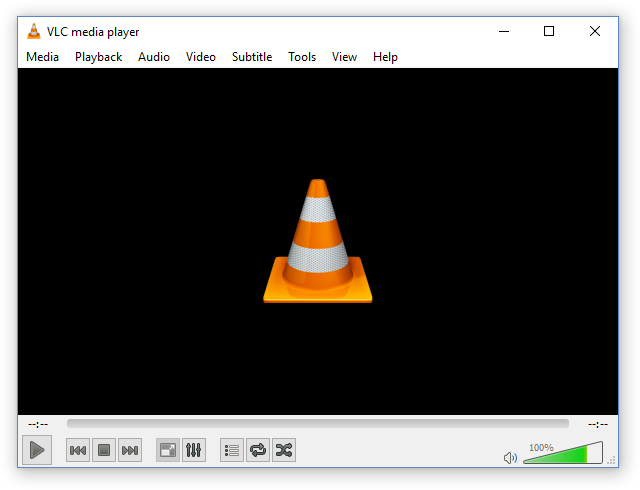
    VLC is an open source program which plays almost every multimedia file. The VLC player is free of cost. It was first introduced in the Linux platform but after the success of VLC; now it is available on every major operating system. If you have never used it before; use it today, I am sure you will like it.

    VLC Media Player

    VLC is a free and open source cross-platform multimedia player and framework that plays most multimedia files as well as DVDs, Audio CDs, VCDs, and various streaming protocols.

    If you want to stream Youtube video files in VLC media player for fun or you get bored of Youtube Interface.  Here is a tip for you.

    • Open VLC Media Player.
    • Click Media > Stream  (or simply just press Ctrl+S.)
    • A box will appear like this,
    • How to Stream Youtube Videos Directly in VLC media Player-1

    • Click on tab Network.
    • Now, you need to copy Youtube video URL from address bar.
    • Go to Youtube.com, search for your favorite video and play it.
    • Copy the link from address bar and paste it to Network tab in VLC.
    • At the end of box you can see the the buton Stream.
    • Click on drop down arrow next to the stream button.
    • Click On Play button.

    Your Video will appear in VLC after few moments. Now you can stream videos in VLC and have fun.

    Watch Entire YouTube Playlists in VLC

    Go to the YouTube playlist on a browser window and copy the link to that playlist.

    Run VLC Media Player, go to View > Playlist or press Ctrl + L.

    play youtube video VLC.

    Now press Ctrl + N to open the section Open Media on VLC and here paste the previously copied YouTube playlist link. And, press the button Play or Enter.

    How to Set a Video as Your Desktop Wallpaper using VLC Player
    Add a Subtitle to Your Movie using VLC Player

  • Tune Your Guitar with a Computer Software or Mobile App

    Tune Your Guitar with a Computer Software or Mobile App

    If you are looking for a way to easily tune your guitar then you come to the right place.  I am sharing here different ways which you can use to tune your guitar without spending any money on expensive guitar tuners.

    This APTUNER software is very useful for every guitarist who is looking for a way to tune the guitar. Whether you are using electric guitar or Acoustic it doesn’t matter. APTUNER works for both.

    You just need to download this software from their official website and it’s free of cost.

    If you have an Electric guitar then plug your guitar in the line-in port of your PC.

    Select a tuning option whether you want to drop down tuning or Simple E guitar tuning.

    Pluck one string step by step starts with Higher E (thick one) without pressing any note on your fretboard.

    Now, See at the screen of your APTUNER. It frequently changing notes on the meter.

    Pick your tuning key at the end of your fretboard.

    Tune it until you find the note E on your meter of APTUNER.

    Now take a meter reading to the level of 0 Which is in center of tuning meter.

    Pluck second string like above E String until you find A note on your meter. Now tune all strings like this.

    If you have an Acoustic guitar without any sound equalizer or built-in Mic. You just need to change the settings of APTUNER  Go To Recoding > Windows Recording Control > Tick on the built-in mic of your PC.

    Now you can easily tune your guitar by mic the same procedure as above.

    When I wrote this article, smartphones weren’t a thing. However, I am updating this article after years so I thought why not share some other smartphone applications for both Android and iOS devices.

    iOS Apps to Tune Your Guitar

    iOS apps

    Here are the top 5 guitar tuner apps which you can use on an iOS device such as iPhone, or iPad.

    • GuitarTuna: This is not just a guitar tuner: we’ve got +100 tunings for 15 instruments! It’s fast, accurate and easy to use. GuitarTuna has been downloaded over 80 million times, which makes it the most downloaded tuning app in the world.
    • Guitar Tuner – Ukulele & Bass: DoubleTune is an advanced tuning app created by professional musicians. It’s suitable for tuning a range of string musical instruments, learning new chords and refreshing your memory of already-learned ones. Competitive educational games are equally useful for beginners and mastered guitar players. One way or another, DoubleTune is a must-have app for any musician.
    • Fender Tune – Guitar Tuner: Fender Tune is the 5-star rated, easy-to-use, super-accurate tuner app for guitar, bass & ukulele from Fender®.
    • Tuner Lite by Piascore: “Tuner Lite by Piascore” is a chromatic instrument tuner and pitch pipe that allows you to quickly and accurately tune your instrument using the built-in mic in your iPhone or iPad.
    • Guitar Tuner Easy tune chords: CoachTuner is a FREE chromatic instrument tuner that allows you to quickly tune your guitar, bass and ukulele using the built-in mic of your iPhone/iPad/iPod. CoachTuner can tune acoustic or electric guitar, bass, ukulele. It’s easy to use for beginners and it’s Free.

    Android Apps to Tune Your Guitar

    Android Apps

    Here are some very useful Android apps that you can use on your Android-based tablet or phone.

    • Boss Tuner: The BOSS Tuner app brings BOSS’s trusted and world-renowned chromatic tuning technology to Android mobile devices. Available as a free download, the convenient app features the familiar look and intuitive display style of the best-selling TU-3 / TU-3W pedal tuner. Using the mic in your Android device, you can tune a guitar, bass and other instruments like violin, cello, brass, etc.
    • Chromatic Guitar Tuner: Chromatic Guitar Tuner is a fast, accurate and easy-to-use app offering pro level of tuning precision!
    • Cifra Club Tuner: Just play a note of your instrument to tune it anywhere using your smartphone or tablet!
      To tune your string instruments, such as acoustic guitar, guitar, bass, and cavaquinho, follow the on-screen pointer and look at the note and frequency that are closest to the played string.
    • DaTuner: DaTuner is an all-purpose, precise and responsive chromatic tuner app for Android with a simple interface. Rather than focusing on fancy graphics assets, we made it fast and easy to use!
    • Fender Guitar Tuner: The updated Tune app comes with an all-in-one Player Pack practice kit, featuring chords, scales, built-in beats, advanced tuning capabilities and a metronome, all available for in-app purchase!

    I hope you find this article useful. If you use SoundCloud then you can check out this tutorial to download songs from SoundCloud to your Android phone.

  • How to Add subtitles in a Movie or a TV Show Easily

    How to Add subtitles in a Movie or a TV Show Easily

    Subtitles are necessary when you are watching a movie in a foreign language. If you are new to English or learning any other language then using subtitles in your movie file is a great way to increase your vocabulary. In this post, I am going to show you how you can add subtitles to your movies easily.

    No matter what language you speak, everyone enjoys watching movies. The problem is that most movies do not have the budget to afford translation into multiple languages.

    When I started watching movies on the Internet in foreign languages I had difficulty finding suitable subtitles. However, now it becomes easier to find accurate subtitles for any movie.

    There are a lot of reasons to add subtitles to a video:

    • They make the video accessible to people who are deaf or hard of hearing
    • They make it easier to track and understand the lyrics if it’s a music video
    • They offer an alternative to posting lyrics alongside the video of a music video
    • They provide the opportunity to translate your video into any language

    How to Add Subtitles in Your Movie on an Android Device?

    If you are using an Android device then you can use VLC Player for Android and MX Player to play files which have subtitles. However, if your movie or tv show file doesn’t have any subtitles then you can easily add them. Here’s how you can do it:

    Add Subtitles to a Movie by Using VLC for Android:

      1. Play any video file that you want to have subtitles.
      2. Tap on the screen to bring up the on-screen buttons (if it is not showing already).

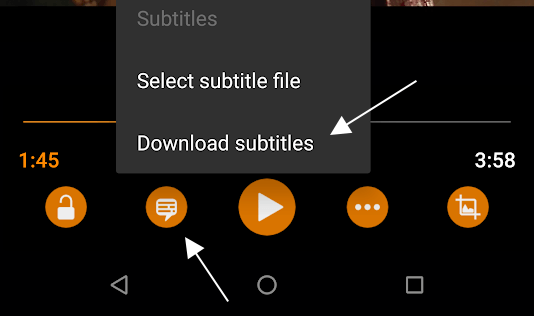
    Add subtitles in VLC player for Android

    1. Tap the second button from the left, between the lock and play button.
    2. Tap on Download subtitles.

    Add Subtitles to a Movie by Using MX Player

      1. Play any movie or tv show file using MX Player.
      2. Tap on the screen to bring up the on-screen buttons.
      3. Tap the three-dotted menu and select Subtitle settings.

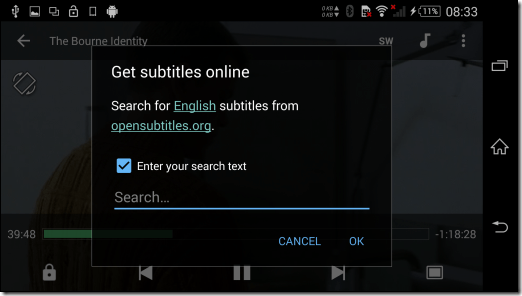
    How to Add Subtitles in MX Player

    1. Here, tap the option Get subtitles online to search and download the suitable file from the internet.

    How to Add Subtitles Manually on an Android Device, PC, or Mac?

    It’s pretty easy, just copy the title of the movie you’ve downloaded, go to google, paste the movie title and add “subs” or “subtitles” at the end, and hit enter.

    1. Click on any of the 1st three search results.
    2. Download the subtitle, which is a .srt file most of the time (sometimes it could be a .sub file)
    3. Make sure the name of your movie has the exact name as your subtitle file.
    4. Example movie: AwesomeMovie.mkv, subs: AwesomeMovie.srt
    5. You also need to put your subtitles in the same directory as your movie. Let’s suppose your movie file is in the folder “Movie Name” then you must add subtitle file in the same folder.

    Websites to Download Subtitles for Movies and TV Shows

    before you can turn on subtitles for a video, you’ll need to find and download a subtitle file that has been synced properly with that particular video file. If you downloaded a movie off of a torrent site then some torrent uploaders add subtitles within the torrent. However, if your movie doesn’t have a subtitle then you can download them by using any of these websites.

    When looking for subtitles, we only recommend these two sites:

    Subscene — My personal favorite. Unless the movie or TV show you’re trying to watch is underground or decades-old, it’s almost guaranteed that you’ll find subtitles that work. Subtitles are categorized by title, language, and whether or not they include hearing-impaired cues.

    OpenSubtitles — This database is pretty big and the subtitles do work, and you’ll even find some that can’t be found on Subscene, but beware that this site has a lot of ads. Grabbing subtitles here can feel like a game of elimination as you try to figure out which download links are the right ones.

    Let me know in the comments which of these methods you use to add subtitles to your movies. Check out this tutorial on how to download music from SoundCloud to an Android phone.