Category: Browsers

These beginner friendly tutorials can help you improve productivity while using browsers like Google Chrome and Mozilla Firefox.

  • How to Fix “Aw, Snap!” Error in Google Chrome?

    How to Fix “Aw, Snap!” Error in Google Chrome?

    The “Aw, Snap! Something Went Wrong” error is a frustrating issue encountered by many Google Chrome users.

    This error typically indicates a problem with the browser’s rendering engine or a conflict with extensions, plugins, or browser settings. In this guide, I will help you resolve the “Aw, Snap!” error and get Google Chrome back to working condition.

    Reload the Page

    Sometimes, the “Aw, Snap!” error occurs due to temporary network issues or a glitch while loading a webpage.

    Simply click on the reload button or press Ctrl + R (Cmd + R on Mac) Chrome Shortcut to refresh the page and see if the error persists.

    Check Internet Connection

    One of the common reasons for encountering the “Aw, Snap! Something Went Wrong” error in Google Chrome is an unstable or interrupted internet connection.

    Make sure that your device has a stable and functioning internet connection is crucial for loading pages correctly.

    • Start by verifying that your device is connected to the internet. Look for the Wi-Fi or cellular data indicator on your device’s status bar to confirm the connection status.
    • Alternatively, try accessing other online services or websites to check if your internet connection is working properly.
    • If you’re using Wi-Fi, make sure you’re within range of your router and that the signal strength is adequate. Consider restarting your router or modem to resolve any potential connectivity issues.
    • If you’re using a cellular data connection, ensure that mobile data is enabled on your device and that you have sufficient signal strength. You may need to move to an area with better network coverage if the signal is weak or unstable.
    • If you’re using a public Wi-Fi network, such as in a coffee shop or airport, ensure that you’ve successfully connected to the network and accepted any terms of service or login requirements.

    Disable Extensions

    • Extensions such as Ad Blockers can sometimes conflict with Chrome’s rendering engine and cause the “Aw, Snap!” error.
    • Open Chrome and go to chrome://extensions/.
    • Disable all extensions by toggling the switch next to each extension to the off position.
    • Reload the webpage and see if the error is resolved. If so, re-enable extensions one by one to identify the problematic one.

    Clear Browsing Data

    Cached files and cookies may sometimes interfere with Chrome’s functionality, leading to the “Aw, Snap!” error.

    • Go to Chrome settings by typing chrome://settings/ in the address bar.
    • Scroll down and click on “Advanced” to expand advanced settings.
      Under “Privacy and security,” click on Clear browsing data.
    • Select the time range and the types of data you want to clear (e.g., cookies, cached images and files) and click Clear data.

    Update Chrome

    • Outdated versions of Chrome may contain bugs or security vulnerabilities that can trigger the “Aw, Snap!” error.
    • Check for Chrome updates by clicking on the three-dot menu icon > Help > About Google Chrome.
    • Chrome will automatically check for updates and install them if available. Restart the browser after updating.

    Reset Chrome Settings

    Resetting Chrome settings to their default values can help resolve underlying configuration issues causing the error.

    • Go to Chrome settings by typing chrome://settings/ in the address bar.
    • Scroll down and click on “Advanced” to expand advanced settings.
    • Scroll down to the “Reset and clean up” section and click on Restore settings to their original defaults.
    • Click Reset settings to confirm and restart Chrome.

    If none of the above methods work, reinstalling Chrome can often resolve persistent issues.

    Uninstall Chrome from your computer through the Control Panel or Settings app. Download the latest version of Chrome from the official website and install it.

  • Useful Google Chrome Keyboard Shortcuts – Linux + Windows + Mac

    Useful Google Chrome Keyboard Shortcuts – Linux + Windows + Mac

    Looking for Google Chrome keyboard shortcuts to boost browsing speed? I have compiled a list of all major keyboard shortcuts which you can use on a variety of operating systems such as Linux, Windows, and Mac. You would obviously need to install Google Chrome browser to use any of these shortcuts.

    Also, check out these useful Google Docs Hacks to boost productivity.

    By using keyboard shortcuts you can boost your browsing speed on Google Chrome. If you are new to computers, you can get used to these shortcuts and get things done on your browser real quick.

    I broke down 2 tables; 1st one is Windows + Linux and second one is Mac only.

    Google Chrome keyboard Shortcuts Windows and Linux

    ActionShortcut
    Open a new windowCtrl + n
    Open a new window in Incognito modeCtrl + Shift + n
    Open a new tab, and jump to itCtrl + t
    Reopen the last closed tab, and jump to itCtrl + Shift + t
    Jump to the next open tabCtrl + Tab or Ctrl + PgDn
    Jump to the previous open tabCtrl + Shift + Tab or Ctrl + PgUp
    Jump to a specific tabCtrl + 1 through Ctrl + 8
    Jump to the last tabCtrl + 9
    Open your home page in the current tabAlt + Home
    Open the previous page from your browsing history in the current tabAlt + Left arrow
    Open the next page from your browsing history in the current tabAlt + Right arrow
    Close the current tabCtrl + w or Ctrl + F4
    Close all open tabs and the browserCtrl + Shift + w
    Minimize the current windowAlt + Space + n
    Maximize the current windowAlt + Space + x
    Close the current windowAlt + F4
    Quit Google ChromeCtrl + Shift + q
    Open the Chrome menuAlt + f or Alt + e or F10
    Show or hide the Bookmarks barCtrl + Shift + b
    Open the Bookmarks ManagerCtrl + Shift + o
    Open the History page in a new tabCtrl + h
    Open the Downloads page in a new tabCtrl + j
    Open the Chrome Task ManagerShift + Esc
    Set focus on the first item in the Chrome toolbarShift + Alt + t
    Switch focus forward between the Address bar, Bookmarks bar (if showing), and page contentF6
    Switch focus backward between the Address bar, Bookmarks bar (if showing), and page contentShift + F6
    Open the Find Bar to search the current pageCtrl + f or F3
    Jump to the next match to your Find Bar searchCtrl + g
    Jump to the previous match to your Find Bar searchCtrl + Shift + g
    Open Developer ToolsCtrl + Shift + j or F12
    Open the Clear Browsing Data optionsCtrl + Shift + Delete
    Open the Chrome Help Center in a new tabF1
    Log in a different user or browse as a GuestCtrl + Shift + m
    Open a feedback formAlt + Shift + i
    Open options to print the current pageCtrl + p
    Open options to save the current pageCtrl + s
    Reload the current pageF5 or Ctrl + r
    Reload the current page, ignoring cached contentShift + F5 or Ctrl + Shift + r
    Stop the page loadingEsc
    Browse clickable items moving forwardTab
    Browse clickable items moving backwardShift + Tab
    Open a file from your computer in ChromeCtrl + o + Select a file
    Display non-editable HTML source code for the current pageCtrl + u
    Save your current webpage as a bookmarkCtrl + d
    Save all open tabs as bookmarks in a new folderCtrl + Shift + d
    Turn full-screen mode on or offF11
    Make everything on the page biggerCtrl and +
    Make everything on the page smallerCtrl and –
    Return everything on the page to default sizeCtrl + 0
    Scroll down a webpage, a screen at a timeSpace or PgDn
    Scroll up a webpage, a screen at a timeShift + Space or PgUp
    Go to the top of the pageHome
    Go to the bottom of the pageEnd
    Scroll horizontally on the pageShift + Scroll your mousewheel
    Move your cursor to the front of the previous word in a text fieldCtrl + Left arrow
    Move your cursor to the back of the next word in a text fieldCtrl + Right arrow
    Delete the previous word in a text fieldCtrl + Backspace
    Move focus to a notificationAlt + n
    Allow within a notificationAlt + Shift + a
    Deny within a notificationAlt + Shift + d
    Open the Home page in the current tabAlt + Home

    Google Chrome Keyboard Shortcuts for Mac OS

    ActionShortcut
    Open a new window⌘ + n
    Open a new window in Incognito mode⌘ + Shift + n
    Open a new tab, and jump to it⌘ + t
    Reopen the last closed tab, and jump to it⌘ + Shift + t
    Jump to the next open tab⌘ + Option + Right arrow
    Jump to the previous open tab⌘ + Option + Left arrow
    Jump to a specific tab⌘ + 1 through ⌘ + 8
    Jump to the last tab⌘ + 9
    Open the previous page in your browsing history for the current tab⌘ + [ or ⌘ + Left arrow
    Open the next page in your browsing history for the current tab⌘ + ] or ⌘ + Right arrow
    Closes the current tab or pop-up⌘ + w
    Closes the current window⌘ + Shift + w
    Minimize the window⌘ + m
    Hide Google Chrome⌘ + h
    Quit Google Chrome⌘ + q
    Show or hide the Bookmarks Bar⌘ + Shift + b
    Open the Bookmark Manager⌘ + Option + b
    Open the Settings page in a new tab⌘ + ,
    Open the History page in a new tab⌘ + y
    Open the Downloads page in a new tab⌘ + Shift + j
    Open the Find Bar to search the current page⌘ + f
    Jump to the next match to your Find Bar search⌘ + g
    Jump to the previous match to your Find Bar search⌘ + Shift + g
    When Find Bar is open, search for selected text⌘ + e
    Open Developer Tools⌘ + Option + i
    Open the Clear Browsing Data options⌘ + Shift + Delete
    Log in as a different user or browse as a Guest⌘ + Shift + m
    Open options to print the current page⌘ + p
    Open options to save the current page⌘ + s
    Open the Page Setup dialog⌘ + Option + p
    Email your current page⌘ + Shift + i
    Reload your current page⌘ + r
    Reload your current page, ignoring cached content⌘ + Shift + r
    Stop the page loadingEsc
    Browse clickable items moving forwardTab
    Browse clickable items moving backwardShift + Tab
    Open a file from your computer in Google Chrome⌘ + o + Select a file
    Display non-editable HTML source code for the current page⌘ + Option + u
    Open the JavaScript Console⌘ + Option + j
    Save your current webpage as a bookmark⌘ + d
    Save all open tabs as bookmarks in a new folder⌘ + Shift + d
    Turn full-screen mode on or off⌘ + Ctrl + f
    Make everything on the page bigger⌘ and +
    Make everything on the page smaller⌘ and –
    Return everything on the page to the default size⌘ + 0
    Scroll down a webpage, a screen at a timeSpace
    Scroll up a webpage, a screen at a timeShift + Space
    Search the web⌘ + Option + f
    Move your cursor to the front of the previous word in a text fieldOption + Left arrow
    Move your cursor to the back of the next word in a text fieldOption + Right arrow
    Delete the previous word in a text fieldOption + Delete
    Open your home page in the current tab⌘ + Shift + h


    I hope you find these keyboard shortcuts useful. If you are by any chance using Mozilla Firefox, then check out Mozilla Firefox keyboard shortcuts as well. Please subscribe for my weekly newsletter to get useful updates in your email inbox.

  • 80+ Essential Firefox Keyboard Shortcuts

    80+ Essential Firefox Keyboard Shortcuts

    Firefox Keyboard Shortcuts

    Do you use the Firefox browser and looking for keyboard shortcuts? There are plenty of shortcuts in every application; using keyboard shortcuts can make use of any app faster. some people prefer a mouse over keyboard shortcuts. I often don’t use keyboard shortcuts myself, but using these on the Firefox browser will definitely boost productivity.

    Mozilla Firefox is a free and open-source web browser developed by The Mozilla Foundation and its subsidiary, Mozilla Corporation. Firefox is available for Windows, macOS, Linux, BSD, illumos and Solaris operating systems.

    Source

    For those who like to use Firefox, I have written down some cool keyboard shortcuts for you. You can improve your experience with Firefox by learning some essential keyboard shortcuts.

    Firefox Keyboard Shortcuts

    CommandShortcut
    BackAlt + ←
    Backspace
    ForwardAlt + →
    Shift + Backspace
    HomeAlt + Home
    Open FileCtrl + O
    ReloadF5
    Ctrl + R
    Reload (override cache)Ctrl + F5
    Ctrl + Shift + R
    StopEsc
    Go to Bottom of PageEnd
    Go to Top of PageHome
    Move to Next FrameF6
    Move to Previous FrameShift + F6
    PrintCtrl + P
    Save Page AsCtrl + S

    Zoom In

    Ctrl + +
    Zoom OutCtrl + –
    Zoom ResetCtrl + 0
    CopyCtrl + C
    CutCtrl + X

    Delete

    Del
    PasteCtrl + V
    RedoCtrl + Y
    Select AllCtrl + A
    UndoCtrl + Z
    FindCtrl + F
    Find AgainF3
    Ctrl + G
    Find PreviousShift + F3
    Ctrl + Shift + G
    Quick Find within link-text only
    Quick Find/
    Close the Find or Quick Find barEsc
    Search barCtrl + K
    Select or Manage Search EnginesAlt + ↑
    Alt + ↓
    F4
    Close TabCtrl + W
    Ctrl + F4
    Close WindowCtrl + Shift + W
    Alt + F4
    Move Tab in focus LeftCtrl + ←
    Ctrl + ↑
    Move Tab in focus RightCtrl + →
    Ctrl + ↓
    Move Tab in focus to startCtrl + Home
    Move Tab in focus to endCtrl + End
    New TabCtrl + T
    New WindowCtrl + N
    Next TabCtrl + Tab
    Ctrl + Page Down
    Open Address in New TabAlt + Enter
    Previous TabCtrl + Shift + Tab
    Ctrl + Page Up
    Undo Close TabCtrl + Shift + T
    Undo Close WindowCtrl + Shift + N
    Select Tab 1 to 8Ctrl + 1to8
    Select Last TabCtrl + 9
    Tab Groups ViewCtrl + Shift + E
    Close Tab Groups ViewEsc
    Next Tab GroupCtrl + `
    Previous Tab GroupCtrl + Shift + `
    History sidebarCtrl + H
    Library window (History)Ctrl + Shift + H
    Bookmark All TabsCtrl + Shift + D
    Bookmark This PageCtrl + D
    Bookmarks sidebarCtrl + B
    Ctrl + I
    Library window (Bookmarks)Ctrl + Shift + B
    DownloadsCtrl + J
    Add-onsCtrl + Shift + A
    Web ConsoleCtrl + Shift + K
    InspectCtrl + Shift + I
    ScratchpadShift + F4
    Page SourceCtrl + U
    Error ConsoleCtrl + Shift + J
    Toggle Private BrowsingCtrl + Shift + P
    Clear Recent HistoryCtrl + Shift + Del
    Complete .com AddressCtrl + Enter
    Complete .net AddressShift + Enter
    Complete .org AddressCtrl + Shift + Enter
    Delete Selected Autocomplete EntryDel
    Toggle Full ScreenF11
    Toggle Menu Bar (when hidden)Alt
    F10
    Show/Hide Add-on BarCtrl + /
    Caret BrowsingF7
    Select Location BarAlt + D
    Ctrl + L
    Toggle Play / PauseSpace bar
    Decrease volume
    Increase volume
    Mute audioCtrl + ↓
    Unmute audioCtrl + ↑
    Seek back 15 seconds
    Seek back 10 %Ctrl + ←
    Seek forward 15 seconds
    Seek forward 10 %Ctrl + →
    Seek to the beginningHome
    Seek to the endEnd

    If you know any other useful Firefox keyboard shortcuts, please leave it here in the comment box. Also, check out this post on Google Chrome Keyboard shortcuts if you use it.

  • How to Display Only Favicon Icons in a Bookmark Bar on Google Chrome

    How to Display Only Favicon Icons in a Bookmark Bar on Google Chrome

    You can show only favicon icons of a website to your bookmark bar on Google Chrome using this simple trick. You can customize the look of your bookmarks.

    Using bookmark bar is a good way to manage frequently visit sites in Google Chrome browser.

    Also, check out these useful Google Chrome keyboard shortcuts to browse faster.

    What is a Favicon Icon?

    A favicon is a file containing one or more small icons, associated with a particular website or web page.

    A web designer can create such an icon and upload it to a website (or web page) by several means, and graphical web browsers will then make use of it. Browsers that provide favicon support typically display a page’s favicon in the browser’s address bar.

    Source

    In this tutorial, I am going to show you how you can manage bookmark bar to add more bookmarks in it.  We will edit bookmarks to show only favicon icons in bookmark bar, one more benefit of using favicons in bookmark bar is; you can add more bookmarks using less of space on your browser.

    If you are using Google Docs then check out these productive Google Docs hacks.

    How to Add a Bookmark to Your Google Chrome Browser

    • On your computer, open Chrome.
    • Go to the site you want to visit again in the future.
    • To the right of the address bar, click Star Star.
    • Find a bookmark
    • On your computer, open Chrome.
    • At the top right, click More More and then Bookmarks.
    • Find and click a bookmark.

    To open bookmarks faster, use the bookmarks bar. Your bookmarks will show under the address bar. Click a bookmark to open it. To turn the bookmarks bar on or off, click More More and then Bookmarks and then Show Bookmarks Bar.

    • Open your Chrome Browser, go to Wrench Icon > Bookmarks > Bookmark manager.
    • Now, if you already have bookmarks in your bookmark manager, you can click down arrow > Edit > delete the bookmark text.

    Show Favicon Icons in Bookmark Bar using Google Chrome extension

    You can also use IO bookmark extension to do this without editing the text in your bookmarks. You have to install this extension in your browser and click at the button of IO on the left side of Wrench icon in your Chrome browser. It will automatically show only favicon icons in your bookmark bar.

    If you want to hide the bookmark bar from your Chrome browser, simply press Ctrl + shift + B. it will hide your bookmark bar. If you want to unhide it simply press again the combination of keys Ctrl + Shift + B.  You can do it as many times you want.

    I am sure you find these tips useful for your Chrome browsing experience. If you want to make your chrome browser experience more cool then see this post ten cool extensions for your chrome browser. If you have any suggestions and comments regarding Chrome please feel free to comment. I reply to every useful comment on the topic but make sure your comment is related to the topic.

  • 10 Best and Useful Google Chrome Extensions

    10 Best and Useful Google Chrome Extensions

    Are you looking for useful Google Chrome extensions to improve your browsing experience? In this blog post, I am going to share with you 10 best and useful Google Chrome extensions that I personally use to check different things as a webmaster and a marketer. I think you will also find them useful.

    Google Chrome is no doubt the fastest browser to browse the Internet. To browse even faster check out these useful Google Chrome keyboard shortcuts.

    If you don’t have it yet, I would personally recommend you to download it. I am sure after a few days you will start loving it. What I like most about Chrome, it is faster than any other web browser and it does not hang old computers when multiple tabs are opened. I found Chrome more user-friendly compared to other browsers.

    If you are using Google Docs then check out these useful Google Docs tips.

    Super-users of Mozilla Firefox might need some extensions to make their Chrome browser experience similar to what they had on Firefox. Extensions and add-ons make Chrome more efficient and useful so I would like to tell you about 10 useful Chrome extensions which I think you will find useful to enhance your browsing and social networking experience.

    1. Google Mail Checker

    Google Mail Checker

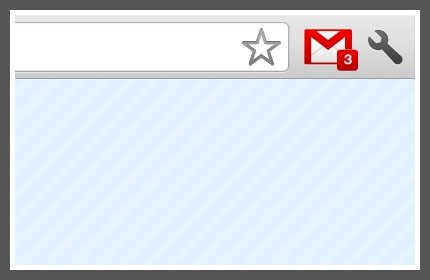
    If your business demands you to check emails all the time, this is quite a useful extension. It will Display the number of unread messages in your Gmail inbox. You can also click the button to open your inbox.

    It will update the number of unread emails in your email inbox as soon as new messages arrive. You can then reach your Gmail inbox by clicking on the Google Mail Checker button.

    2. Turn off The Lights

    Turn Off the Lights Chrome Extension

    A fun extension for Google Chrome to watch YouTube videos by darkening all the background info. The entire page will be fading to dark, so you can watch the videos as if you were in the cinema.

    With a single click on the lamp button, the page will fade to dark. And automatically focus on the video. By clicking on it again, the page will return to normal.

    3. Hootsuite

    Hootsuite extension google chrome

    If you are into social marketing then this extension will help you to organize your social networks from 1 single dashboard. Publish updates, track activity, and analyze results across multiple social networks including Twitter and Facebook.

    Try it free, and choose from three plans tailored to meet your needs. You just have to set the time and date in the future then it will get published automatically when the actual fixed time comes. The basic version of Hootsuite is free with limited functionality.

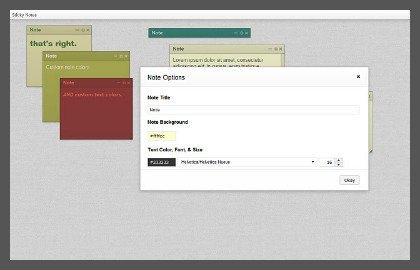
    4. Sticky Notes

    Sticky Notes extension Google Chrome

    With help of sticky notes, you will be able to organize your to-do lists and reminders in one place. You don’t need any paper notes to put on your computer screen or computer desk.

    All you need to do is install this extension and then take notes. It will save in your browser whenever you click on the sticky notes extension button a tab will open and you will be able to see your notes in only one tab of your Google Chrome browser. You can give different colors to different notes.

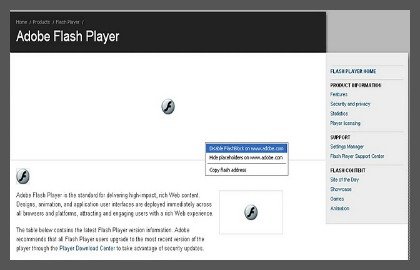
    5. Flash Block

    FlashBlock Google Chrome Extension

    Increase your browsing speed by blocking unnecessary flash content. This extension saves your system resources so you can run multiple things at once. This extension is mostly useful for users with slow and outdated hardware to speed things up a little.

    while you are browsing on an old computer. Flash Block extension will automatically detect flash files on the webpage and block them. You can also manage to allow websites (such as YouTube) via configuration panel by clicking on the extension button.

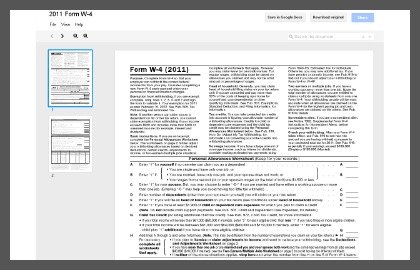
    6. Docs PDF/PowerPoint Viewer

    Docs PDF PowerPoint Viewer Google Chrome Extension

    Note: In new Google Chrome versions, Google uses its built-in browser modules to display PDF and Docs files.

    It automatically opens web document files and PDF files in Google Docs viewer. Installing this extension will help you to not download a file to view it on your computer. It will redirect you to Google Docs viewer.  You can organize formats in the option panel of extension.

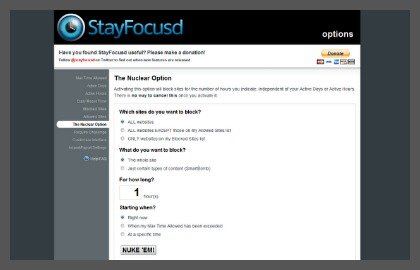
    7. Stay Focused

    StayFocusd Google Chrome Extension

    Stay Focused extension is helpful to boost productive times while you work on your computer. If you procrastinate a lot then you need this extension. I would highly recommend it.

    You can restrict the websites which you think you are addictive of. When the restricted time has complete you can reach to the sites. Stay focused extension is a need for those who are suffering from social networking addictiveness and other entertainment websites and it is affecting their work.

    8. Mercury Reader

    Readability Google Chrome Extension

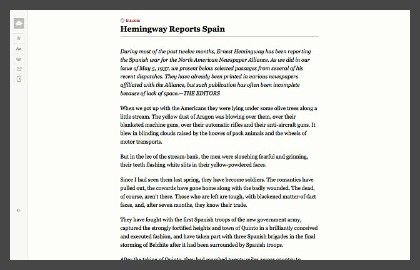
    There are lots of good informational website you have seen but their formatting and visual feel of the content is not visually pleasing to read. The Mercury Reader extension for Chrome removes ads and distractions, leaving only text and images for a clean and consistent reading view on every site.

    Mercury extension will help you read those informational websites on the other tab. You just have to press the button of extension at the top of your Chrome browser.  There are many features of this extension including sending a file to your Kindle, print and save it to read it later.

    9. History Eraser

    History Eraser Google Chrome Extension

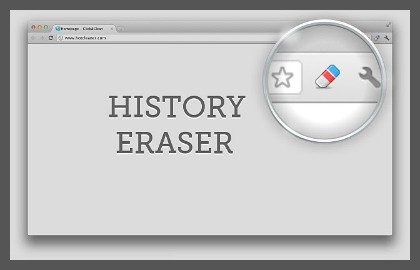
    Deletes typed URLs, Cache, Cookies, your Download, and Browsing History…instantly, with just 1-click on the Eraser button! History Eraser is a lightweight and useful add-in designed for a more comfortable browsing experience.

    History Eraser is easy to use. One of the best cleaning tools for your Chromebook, Windows PC, Mac or Linux.

    10. Full Page Screen Capture

    Awesome Screenshot Google Chrome Extension

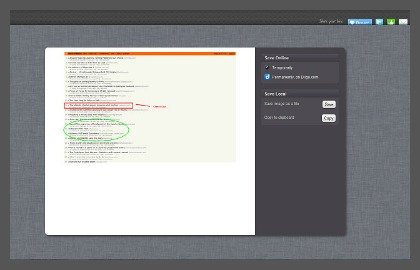
    Capture a screenshot of your current page in entirety and reliably—without requesting any extra permissions!

    The simplest way to take a full page screenshot of your current browser window. Click on the extension icon (or press Alt+Shift+P), watch the extension capture each part of the page, and be transported to a new tab of your screenshot where you can download it as an image or PDF or even just drag it to your desktop.

    These are not the only best Google Chrome extensions but most of them are really helpful. There are many more extensions on the Google Chrome web store; I tried to find some of the best extensions. Usually I don’t write long posts but the extensions and the abundance of them compelled me to write more. I am sure I have missed some useful extensions and add-ons. Please feel free to mention them in the comments.

  • Block Ads in Google Chrome using Ad Block Extension

    Block Ads in Google Chrome using Ad Block Extension

    If you are looking for a way to block ads in your Google Chrome browser then the good news is, you can do it quite simply. As a marketer myself, I understand that advertising is not harmful in any way to the end’s user. However, there are some annoying ads that we all want to to be disappeared.

    If you use Google Docs then also check out best Google Docs tips to improve productivity.

    In this post, I am going to share with you a simple process to block annoying ads from your Google Chrome browser.

    Adblock Extension

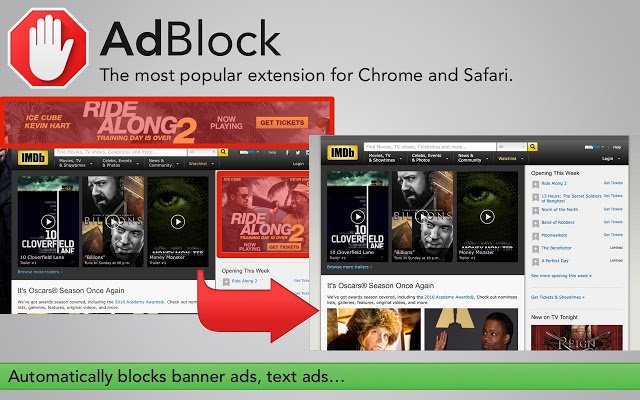
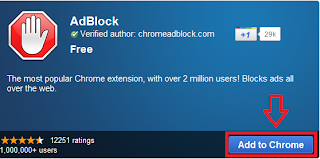
    The most popular Chrome extension, with over 60 million users! Blocks ads all over the web.
    AdBlock. The #1 ad blocker with over 200 million downloads. Blocks YouTube, Facebook, and ads everywhere else on the web.

    The original AdBlock for Chrome works automatically. Choose to continue seeing unobtrusive ads, whitelist your favorite sites, or block all ads by default. Just click “Add to Chrome,” then visit your favorite website and see the ads disappear!

    It is a Google Chrome extension which helps you to disappear ads from your Chrome browser. Adblock is useful for anyone who is tired of seeing irrelevant and annoying ads.

    There are definitely more such extensions to block ads on Google chrome store but I personally like Adblock.

    If you are using Firefox; you can find a similar extension for blocking ads in Firefox, search in Firefox extension store page or Google it adblock plus

    Adblock will block the ads from all of the websites including Facebook and YouTube. So let’s see how to install ad block extension.

    How to Install Adblock Extension and Remove Ads

    Update: This free app is supported by all modern web browsers now: Mozilla Firefox, Opera, and Safari across multiple devices. But in this guide, you will see the installation and configuration of the advertising blocker in the most popular browser at the moment – Google Chrome.

    • Go to ad block extension page.
    • Click on the button ‘add to chrome’.
    • How to install ad block extension in google chrome browser

    • It will start downloading extension file to your computer, wait for a couple of seconds to finish the download process.

    That’s pretty much it. You can access Adblock settings by clicking at the wrench icon at the top right corner. You will find a ‘Stop’ sign, clicking on it will open up a menu.

    If you want to reconfigure your setting of ad blocker you can adjust it by click on the stop sign button.

    Now you can browse the internet safely without seeing any annoying ads in your browser.

    How to Uninstall Adblock Extension from Google Chrome?

    If you don’t want to use adblock anymore then you can uninstall it whenever you want.

    • From the Chrome toolbar, click the Chrome menu icon, hover over More Tools and select Extensions.
    • The Extensions tab opens.
    • Locate Adblock Plus and click Remove.
    • A dialog box opens.
    • Click Remove.
    • Close the tab.

    Google Chrome is a fast browser but if you want to browse even faster then check out these useful Google Chrome keyboard shortcuts.

    If you find any difficulty while installing ad block extension, feel free to ask in the comment box below.