Category: Internet

Want to be Internet savvy? These tutorials can help you improve your skills to perform different tasks on the web.

  • How to Block YouTube Ads on Android?

    How to Block YouTube Ads on Android?

    Are you tired of those annoying ads popping up while you’re trying to enjoy your favorite YouTube videos on Android? We hear you! That’s why I’m excited to share with you Revanced APK. You can block YouTube ads on your Android device forever.

    What is Revanced APK?

    Revanced is an open-source project for Android devices that can help you patch the app experience. It’s main purpose is to enrich the user experience of any app by blocking unwanted ads, and add features that users want to see in the app.

    Revanced patches can be installed on many apps other than YouTube, including, Reddit, Facebook, Twitter, and more.

    In this tutorial, we will only be using the YouTube patching to help you watch YouTube ad-free on your Android without paying for YouTube Premium.

    How to Block Ads on YouTube Android?

    First, you need to install the Revanced apk. Unfortunately, you can’t find this app on the Google Play store, because this app doesn’t align with Play Store policies.

    How to Install Revanced Manager APK on Your Android Device?

    Step 1: Download the Revanced APK from the official website on your Android device.
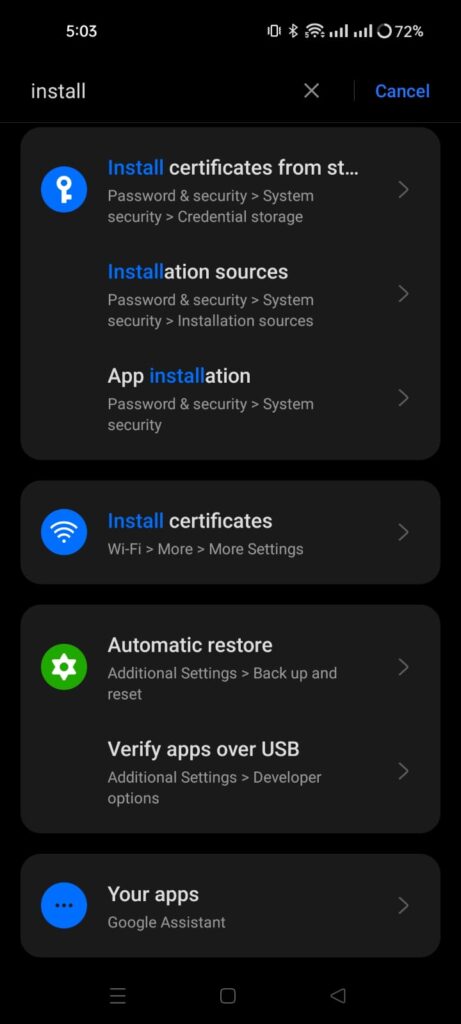
    Step 2: Go to your device settings and enable installation from unknown sources. You can also locate this setting on your device by going to Settings > Search Installation sources.

    Step 3: Open the downloaded Revanced Manager app and follow the on-screen instructions to install Revanced APK on your Android device.

    How to Patch YouTube APK on Revanced
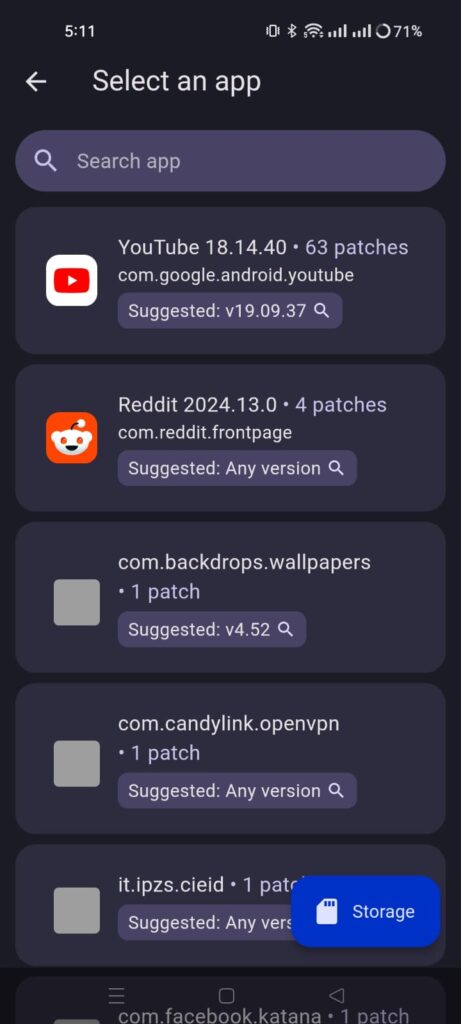
    Step 1: Open the app, and tap on Patcher. Select an app. This will suggest you a YouTube app version that you need to install to apply patches. Click on the Suggested app version. It will open a search window, go the first site apkmirror and download the app.

    Step 2: Don’t install the YouTube app yet. Go to the Revanced Manager, tap on Patcher again. Tap on Select YouTube app. It will ask you to Select from storage. Locate the YouTube app you downloaded in last step, from your phone’s internal storage.
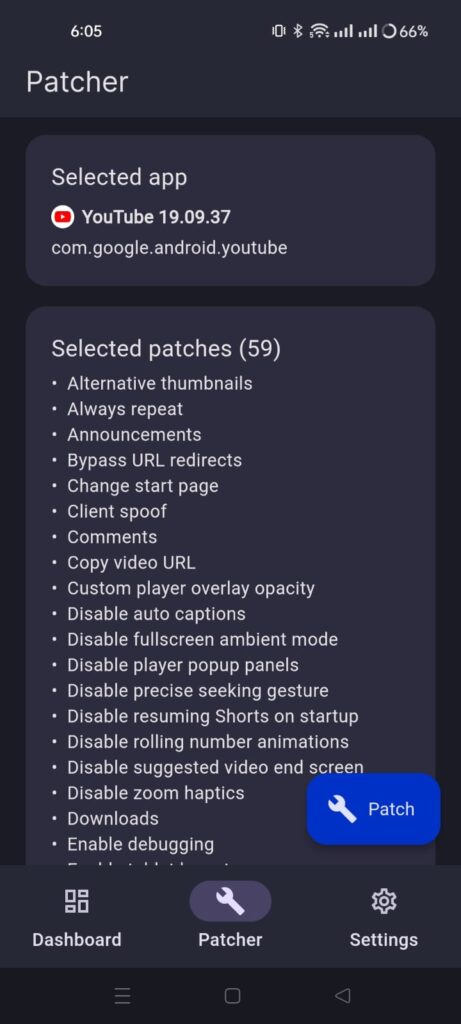
    Step 3: Configure the patches you want to apply. I suggest keep the default selected patches and tap on Patch button.

    Step 4: It will take some time to patch the YouTube app. Once it’s done, It will ask you to install this app on your device. Android might ask you to enable installation from unknown sources for this app. Give the permission, and install the app.

    Step 5: When you first open the app, Revanced YouTube app might ask you to download MicroG services app. This app will let you sign in to your YouTube’s account. So, download and install the app. It will make the YouTube experience even better for you.

    Now, you can enjoy the YouTube ad-free experience on Android. It will block all the YouTube ads on your Android device. You can also customize the app, add or remove features that you don’t use.
  • How to Fix VLC (Direct 3D11 output) Error in VLC Media Player?

    How to Fix VLC (Direct 3D11 output) Error in VLC Media Player?

    If you see VLC (Direct 3D11 Output) error when you play any video file, here’s a simple solution to fix this issue.

    I experience Direct 3D11 Output issue quite randomly. I usually don’t use VLC on PC, but to watch a video tutorial sent by a client, I had to play this file through VLC.

    When I played this file; I saw audio visualizations but no video output. I thought, maybe this file got corrupted, I tried different video files in various formats, and this (Direct 3D11 Output) error wasn’t going away.

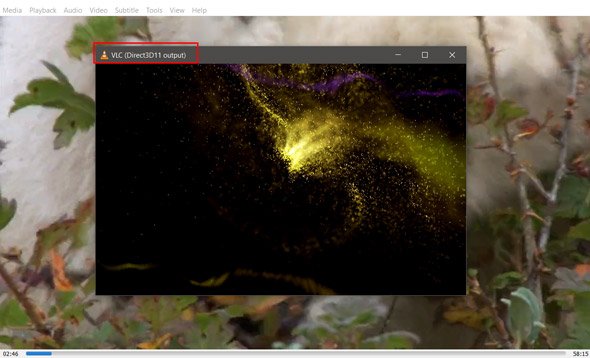
    Here’s a screenshot of the actual error:

    VLC Direct 3D11 Output

    I didn’t know the exact reason why this error appeared because I don’t remember changing any settings.

    To solve the direct 3D11 Output issue, I searched on the Internet for some time but didn’t find a good solution. Hence, I start checking the VLC audio settings in the hope of solving this error.

    Here’s how I solved the ‘Direct 3D11 Output’ error.

    Step 1: Open VLC Media Player.

    Step 2: Click on Tools from the Menu. Select Preferences from the drop-down menu.

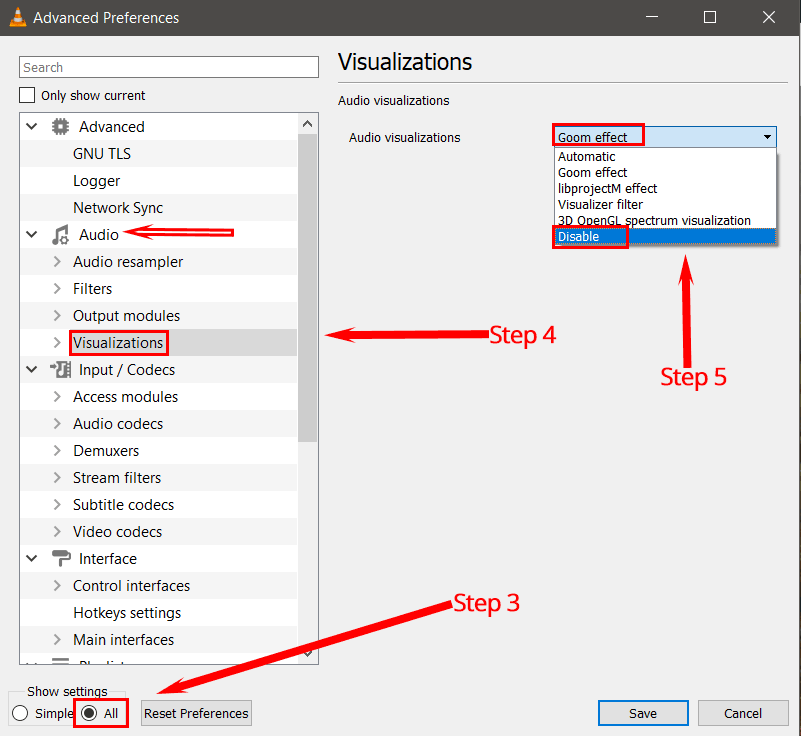
    Step 3: Now go to Audio Settings. Select show settings to ‘All.’

    Disable visualizations from Audio visualizations settings in VLC

    Step 4: You will find many options here. Go to settings from the sidebar menu and select Visualizations.

    Step 5: Click on the drop-down menu in Audio Visualizations and select Disable. Click on the Save button to save all your applied changes.

    This solution has worked for me, and I hope your issue will get resolved too. If you face any problems, then let me know in the comments.

    You might also find these posts helpful:

    How to set a video as your desktop wallpaper using VLC

    Stream YouTube videos directly through VLC

  • How and Where to Buy Books in Pakistan?

    How and Where to Buy Books in Pakistan?

    If you want to buy books in Pakistan, then there are very few bookstores to select from. In this post, I will share some of the best bookstores I use to buy books in Pakistan. Most bookstores on this list have a website where you can browse and buy a book. They will deliver your book within the next few days.

    Most of us are going through tough times after Covid-19. Instead of watching TV and horrifying news, a better way to spend your time is reading a book.

    Where to Buy Books from Bookstores in Pakistan

    1. Readings

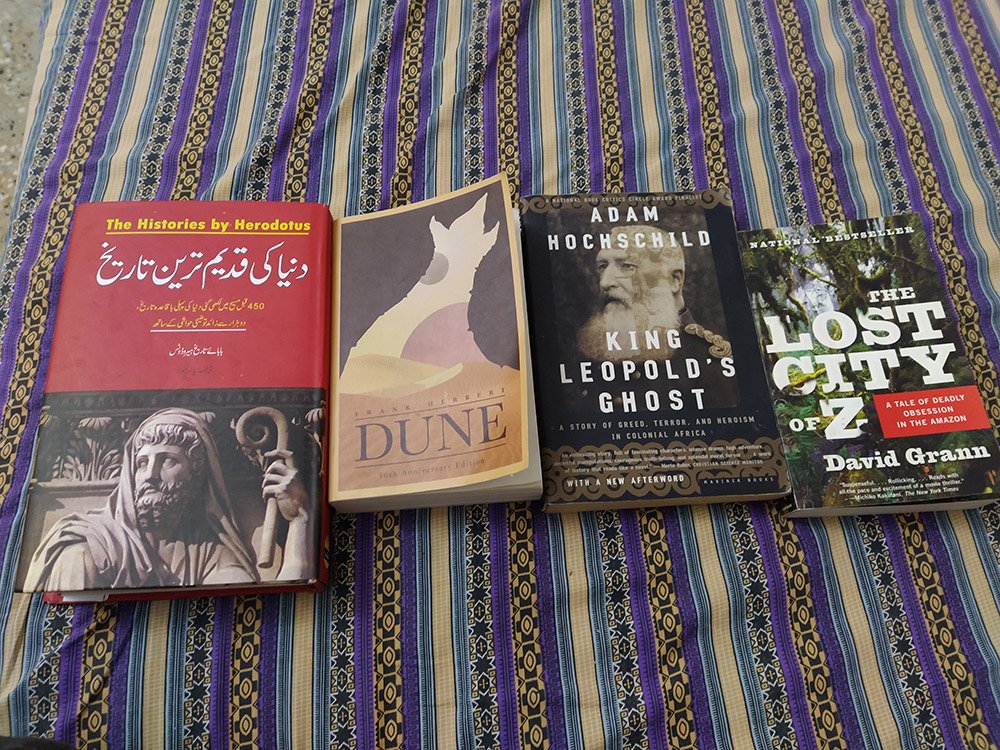
    This is one of my favorite online bookstores. However, their physical store is only situated in Lahore. Most of the books I own I purchased from Readings. They have a vast collection of books on their website. You can easily find the world’s bestsellers that you won’t find anywhere online/offline in Pakistan.

    Their customer support is top-notch, and I receive my order on time whenever I order a book. They sell books at a very reasonable cost, and I never had issues with their price.

    You can also visit their bookstore if you live in Lahore. Here’s the address:

    2. Liberty Books
    When I don’t find a book on Readings, my second go-to bookstore is Liberty Books. Their prices are a little higher when you compare them with other bookstores. However, you don’t care about the price when you badly want a book.

    Their website is user-friendly, and you can effortlessly search any titles through their site-search feature. They have physical bookstores across many cities in Pakistan. You can visit their stores and buy from them if you like.

    3. Global books

    They sell mainly used books in excellent condition. I purchased just a few books from them and had a good experience. If you want to buy books at a reasonable cost, this is the bookstore that you should check out.

    They don’t have a physical bookstore (as far as I know), so you are only left with buying online. Their website is a little dated, and the search feature never found the book I wanted.

    The best thing, though, is their prices are pretty low, and you can easily find some bestsellers if you browse for some time.

    4. Paramount Books

    I bought one book from them and had a good experience. They also sell course books for Medical, law, pre-primary, primary, and secondary education. You can find many fiction/non-fiction books if you browse their website thoroughly.

    Also, you can visit their bookstores offline in many cities across Pakistan.

    5. Welcome Book Port

    This is a well-known bookstore situated at Urdu Bazar, Karachi. You can buy mostly Urdu books from many publishers. They have many books, from Urdu poetry, humor, novels, and Islamic texts. You might find a few English titles published within Pakistan.

    I have bought many books from them for years by visiting their bookstore. They have recently started their online store, so if you want, you can purchase books from them through the website. I tried their online book delivery service, which was beautiful; I ordered a book at night and received it by the following afternoon.

    6. Ferzon Sons Publications

    They are perhaps the oldest publishers that I know of. They mostly have books for children both in Urdu and English language. You can visit their bookstores in various cities across Pakistan. You can try their online store if you like, but you won’t find much variety. Though their service quality is fantastic, you will get the books quickly.

    7. Oxford University Press

    I recently bought a book in Urdu from the Oxford University Press. Although it appeared out of stock on their website, when I contacted them by phone, they arranged the book for me and delivered it in 4 days.

    On their website, they have books on a variety of topics. They have fiction, non-fiction, and academic books. They have physical bookstores throughout Pakistan so that you can buy books offline.

    8. Sang-e-Meel Publications

    They have a fantastic collection of books. I bought some books from them long ago from their physical store. However, their online store has a wide variety of books in Urdu and English.

    Also, you can find their physical stores in many cities across Pakistan. You should visit their website to get more information about the bookstore locations.

    9. Vanguard Books

    This bookstore is situated in Lahore. However, they have a website from where you can buy any book. They deliver books across Pakistan. I have purchased some books from them and had a good experience. Their customer support was slow, and the order process seemed a little tricky.

    However, they are a credible bookstore so you can buy from them without hesitation.

    Import Books from Abroad to Pakistan

    If you don’t find a book you need in the above bookstores, here are a few websites I have used myself. You can order any used book from them, and they will deliver the book within 30 – 45 days via local post (Pakistan Post).

    They ship each book as a new package to save the shipping cost. They will send you two different packages if you order two books in a single order.

    I ordered three books from them and received only two books. I didn’t receive one book to this day from my order. However, when I told them, they gave me a refund without any questions asked.

    Note: You have to use a credit card to buy any book from them.

    Here are the websites that I have used to buy books from them and receive them in Pakistan.

    I hope you find this post helpful. If you find anything wrong with this post or want me to add a missing bookstore, please leave a comment below.

  • 10+ Best Google Docs Tips to Increase Productivity

    10+ Best Google Docs Tips to Increase Productivity

    If you are new to Google Docs or having trouble using it, this post will help you a lot. In this post, I am going to share with you the best Google Docs hacks and tips to boost productivity.

    1. Must Know Google Docs Keyboard Shortcuts

    Using keyboard shortcuts will improve your productivity while working on a Google Docs. These shortcut are the most important ones which are used frequently.

    • Ctrl+Home: Get back to the top of your doc.
    • Ctrl+B: Bold text.
    • Ctrl+E: Align center
    • Ctrl+L: Align left.
    • Ctrl+M: Insert a comment.
    • Ctrl+H: Replace text.
    • Ctrl+Z: Undo.
    • Ctrl+Y: Redo.
    • Ctrl+J: Full justify.
    • Ctrl+Shift+L: Bulleted list.
    • Ctrl+Shift+Space: Insert non-breaking space.
    • Page Down: Move down one screen.
    • Ctrl+K: Inset link.
    • Ctrl+Shift+F: Full screen.
    • Page Up: Move up one screen.
    • Ctrl+Space: Remove formatting.
    • Ctrl+: Heading style 1. Change the “1” to any number 1-6 and get the corresponding header.

    You are not limited to only use these keyboard shortcuts only. In fact, you can add your own keyboard shortcuts.

    Create a new document or open an existing document, then select Tools > Preferences.

    Select Automatic Substitution if it’s not already enabled.

    On the left, you’ll find replacement fields you can use to enter the phrase you wish to use as the shortcut. Enter the text you want to replace in the field on the right.

    2. Export Documents to Your Computer

    When you’re done editing, you can save and export the document as a Word file (go to “File,” then “Download as” and select Word doc or your desired format). This works in Sheets (Excel) and Slides (PowerPoint) as well.

    3.Use Made up Templates

    If you are writing a CV or a cover letter or anything similar, you might need templates to make things easier.

    Check out Google’s template library to find templates from project proposals to schedules, invoices, calendars, and business letters.

    You can also create and save your special templates to be used for the future.

    4. You Can Type by Using Your Voice

    You can create and edit documents through Google Docs using only your voice. Before you begin, you must make sure voice typing is open.

    In your Google document, select Tools.

    Select Voice Typing to open the voice window. It will open on the left-hand side of your document screen.

    You’ll need to allow Google Docs to access your microphone if this is your first time. Once approved, you’ll be able to start speaking immediately.

    As you speak, Google will transpose your words into your document.

    To add punctuation to your document, simply say the punctuation you wish to add. For example, say “period” to add a period to the end of a sentence.

    You can also add new paragraphs by saying “new paragraph” or “new line” while speaking into your document.

    To edit your document, say “italics” or “bold” to enhance words within your sentences. You can also say, “go to the end of the line” to skip ahead.

    5. Use Google Keep within Google Docs

    You can also add notes and images from your Google keep without even leaving the Google Docs. Work with Google Keep notes right from Google Docs. You can add a text or image note from Keep to a document. And likewise, you can add a note to Keep using content from a document.

    6. Add New Fonts

    When you create a new document, Google Docs starts you off with nearly two dozen native fonts you can choose from using the dropdown list on your top editing toolbar. But, there are dozens more fonts and typefaces available to you in that same dropdown.

    To add additional Google Doc fonts, open your document and click the fonts dropdown third box from the left on your editing toolbar.

    7. Open a New Document from Your Browser’s Address Bar

    Simply open a new Chrome tab and type “doc.new” and hit return, and you’ve got yourself a new blank Google doc. Amazing, right? It’s the kind of simple trick that will leave you surprised, impressed and kind of annoyed you didn’t know it already.

    8. Tag People Using Comments

    There’s an option of adding a comment by highlighting some text. For example, if want to point out mistakes of your writer to the editor then you can tag them by highlighting the text that needs to be overlooked. Google Docs will notify the tagged user through an email the text of your comment.

    9. Add Table of Contents

    If you’re writing a long essay or a book then this feature will be quite useful. Without adjusting anything, You can simply press the table of contents button and it will generate and stylize content according to subsections and headings that you have used in the document.

    From the menu click on the ‘Insert’ then choose ‘Table of Contents’.

    10. Publish Docs to the Web

    If you can’t afford to have a domain name and web hosting then you can publish your document as a webpage. Here’s how you can publish a Google Doc as a webpage.

    • In Google Drive, open your file.
    • From select File > Publish to the web.
    • Click Publish.
    • Copy the link and send it to anyone you’d like to share the file with.
    • Updates you make to the original file go live when you re-publish it.

    I hope you like this post. Let me know in the comments your favorite Google keyboard shortcuts or productivity hacks.

  • How to Use Google Search Operators to Make Your Google Search more Powerful

    How to Use Google Search Operators to Make Your Google Search more Powerful

    Google search operators are really helpful for anyone searching for something on Google.  Search engines made the Internet browsing experience easier and comfortable for an average user. Imagine if there were no search engines at your disposal. How’d you find those cool websites?

    There are many search engines but the one widely used is Google. So, in this post, I will only discuss the search operators related to Google.

    If you use Google Docs then check out these cool Google Docs hacks to improve your productivity.

    What are Google Search Operators?

    Some people find difficult to use Google search when they are trying to find something, for those people Google made search operators, with the help of search operators anyone can easily find more accurate results.

    For instance; I am as a student many times use this search operator option whenever I need to find educational articles or help on the internet.

    Inurl:.edu ‘Discrete Mathematic logic’.

    This search operator will only include the results from .edu (education) websites. This search operator is really helpful for me when I get stuck. There are different search operators to find more specific results.

    In this post, I will tell you some of those search operators and tips to search less and find more. When we are stuck in the middle of a work no one wants to spend time on searching again and again.

    Here I have made the list of the search operators which will help you to search more in less time.

    Allintitle:
    We use this search operator to find the keywords from the title of the webpage. For instance allintitle: Tutorials and tips. Now this will only include the results with the title of ‘Tutorials and tips’.

    Define: 
    This one is a useful operator to find definitions of the unknown words. Like Define: Alexander. It will tell you who the person was and you can also try many other words to find definition.

    Movie: 
    This search operator is used for finding movie information. Like, [movie: Tom Hanks talking to volleyball]. Now, this search query will take you to the pages Tom Hanks movie Castaway.

    Weather
    We use this operator to find weather to any specific city. For instance ‘Weather New York’. The weather forecast of New York will appear at the top of the results.

    Flight Search
    You can search the flight schedule of the city and also find by flight number. Flight New York, this search operator will let you find next flights from New York to other destinations. If you include your flight number against flight, it will tell you the exact time of the flight. Find the status of a flight by just simply write down the flight number Emirates 601. It will tell you the departure and arrival time.

    Google search website

    Recent Search Operators

    Since I have written this post, Google has introduced a lot of new search operators. Also, Google now understands queries intent from a user and show different search results to different users. For example, if you search for your flight status by entering your flight number on Google, it will display the exact time of departure and arrival of your flight.

    I hope you found this post useful. Let me know in the comments if you have any suggestions.

  • How to Convert a YouTube Video into GIF Animation

    How to Convert a YouTube Video into GIF Animation

    It’s now incredibly easy to make a GIF from a Youtube video. You might want to capture some moments as a GIF from a YouTube video. Animated GIF is the best way to save time frame from the video and share it online. Because it’s really easy, it takes only a few seconds and it is fun to do.

    In this guide, I will show you how to make a GIF from a YouTube video by using some simple online tools.

    You can use any of these tools that you like, each tool does the job well. Also, they are quite easy to use, you can create GIFs within a few minutes.

    What is a GIF File?

    A GIF (with the file extension, .gif) is basically an image file format that is animated by combining several other images or frames into a single file. This single file is encoded as a graphics interchange format (better known as GIF). Unlike the JPEG image format (.jpg), GIFs typically use a compression algorithm referred to as LZW encoding that does not degrade the image quality and allows for easy storing of the file in bytes.

    The multiple images within a single GIF file are displayed in succession to create an animated clip or a short movie. By default, animated GIFs display the sequence of images only once, stopping when the last image or frame is displayed, although it can also loop endlessly or stop after a few sequences.

    gif image

    You’re not limited to YouTube videos, either – you can create GIFs using clips from Vimeo, Facebook, DailyMotion, and pretty much any other video hosting site you can think of.

    Before you start, however, bear in mind that using third-party apps to download videos is against YouTube’s terms of service. Downloading videos is also a potential copyright infringement unless you own the video yourself, have permission from the copyright holder, or it’s in the public domain.

    If you want to convert youtube video into mp3; see my previous post about how to convert youtube video into mp3 format.

    There are many online tools available to make a gif image. In this tutorial, I am only going to mention some of them. You can choose any online tools from this list to create a free gif image from your favorite YouTube video.

    Online Tools to Turn any YouTube Video into a GIF image

    All of these tools are free to use and available online; we don’t need to download any extra software for downloading videos or making animated gif images.

    How to create GIF images from any YouTube Video

    1. Paste a link from YouTube, Facebook, Vimeo, Dailymotion, or any other video websites. You can also select a funny video from your computer or phone gallery.
    2. Trim the video and add a caption. Any of the above websites will then make a GIF and host it for free with a unique URL.
    3. Share the GIF on Reddit, Facebook, Twitter, Tumblr, Pinterest, VK, or another site of your choice. You can also download and share via email or text message.

    I hope you find this process useful. If you use SoundCloud then check out this tutorial on how to download songs from SoundCloud to your Android device.